Wireless & Bluetooth Keyboard Not Connecting? Fix Guide
A wireless keyboard that refuses to connect is one of the most common — and most fixable — keyboard problems. The cause is usually one of a handful of things: dead batteries, a keyboard that never actually entered pairing mode, a stale pairing on the computer's side, or a 2.4GHz dongle that's lost its bond. Work through the steps below in order and you'll almost always find the culprit before you reach for a new keyboard.
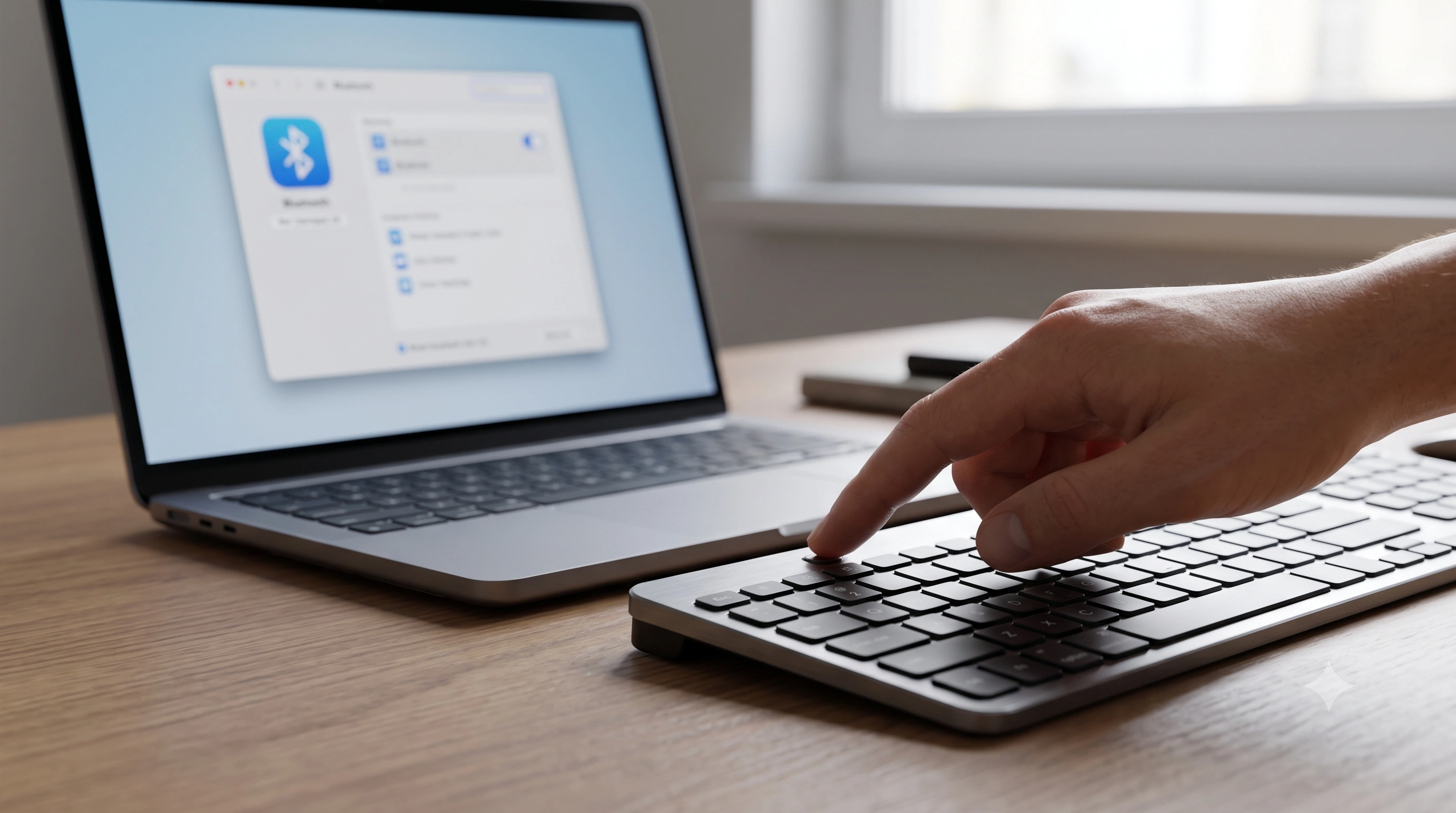
Step 1 — Rule out power first
Low or dead batteries are the single most common cause of a wireless keyboard that "won't connect" — a keyboard with too little power to run its radio can look identical to a genuine pairing failure.
- Replace or recharge the batteries, even if the indicator claims a partial charge.
- Check the physical power switch on the underside or back edge — it's easy to nudge off in a bag, and an off keyboard never appears in any scan.
- Reseat the batteries. A contact that isn't seated flush causes intermittent power that looks exactly like a connection problem.
- Watch the status LED as you power on — slow blink usually means searching, fast blink means pairing mode, solid means connected (check your manual for the exact pattern).
Step 2 — Actually put the keyboard into pairing mode
A large share of "won't connect" reports are really "never entered pairing mode." Turning a keyboard on isn't the same as making it discoverable — most boards only broadcast for a short window, and only after you trigger it deliberately.
- Turn the keyboard on and let it settle for a few seconds.
- Hold the dedicated pairing button — often a Bluetooth icon, sometimes paired with a channel number key like
1–3on multi-device boards — for 3–5 seconds until the LED blinks rapidly, confirming it's advertising itself. - On the computer, open Bluetooth settings and start a new-device scan while the LED is still blinking — pairing mode usually times out in 30–60 seconds.
- Select the keyboard by name. If prompted for a passcode, type it on the keyboard and press Enter — that confirms a real physical connection, not just visibility.
If nothing shows up in the scan, double-check the pairing button combination for your exact model — it varies by manufacturer.
Step 3 — Forget the device and re-pair from scratch
If a keyboard worked before and stopped, or shows "connected" but types nothing, a corrupted pairing record is the likely cause. Bluetooth stores an encryption key on both sides at first pairing; if that gets out of sync on either end, the devices can "see" each other but never exchange keystrokes.
- Windows: Settings → Bluetooth & devices → click the keyboard → Remove device. Then repeat the pairing-mode steps above.
- macOS: System Settings → Bluetooth → hover the keyboard → click the info (i) icon → Forget This Device. Then re-pair.
Removing and re-pairing clears the mismatched key state and fixes most "connects but won't type" cases outright.
Once you've re-paired, don't just assume it worked — open the keyboard tester and press every key. A Bluetooth link can show "connected" while still dropping specific keys, so confirming each one lights up is the only way to know the fix actually held.
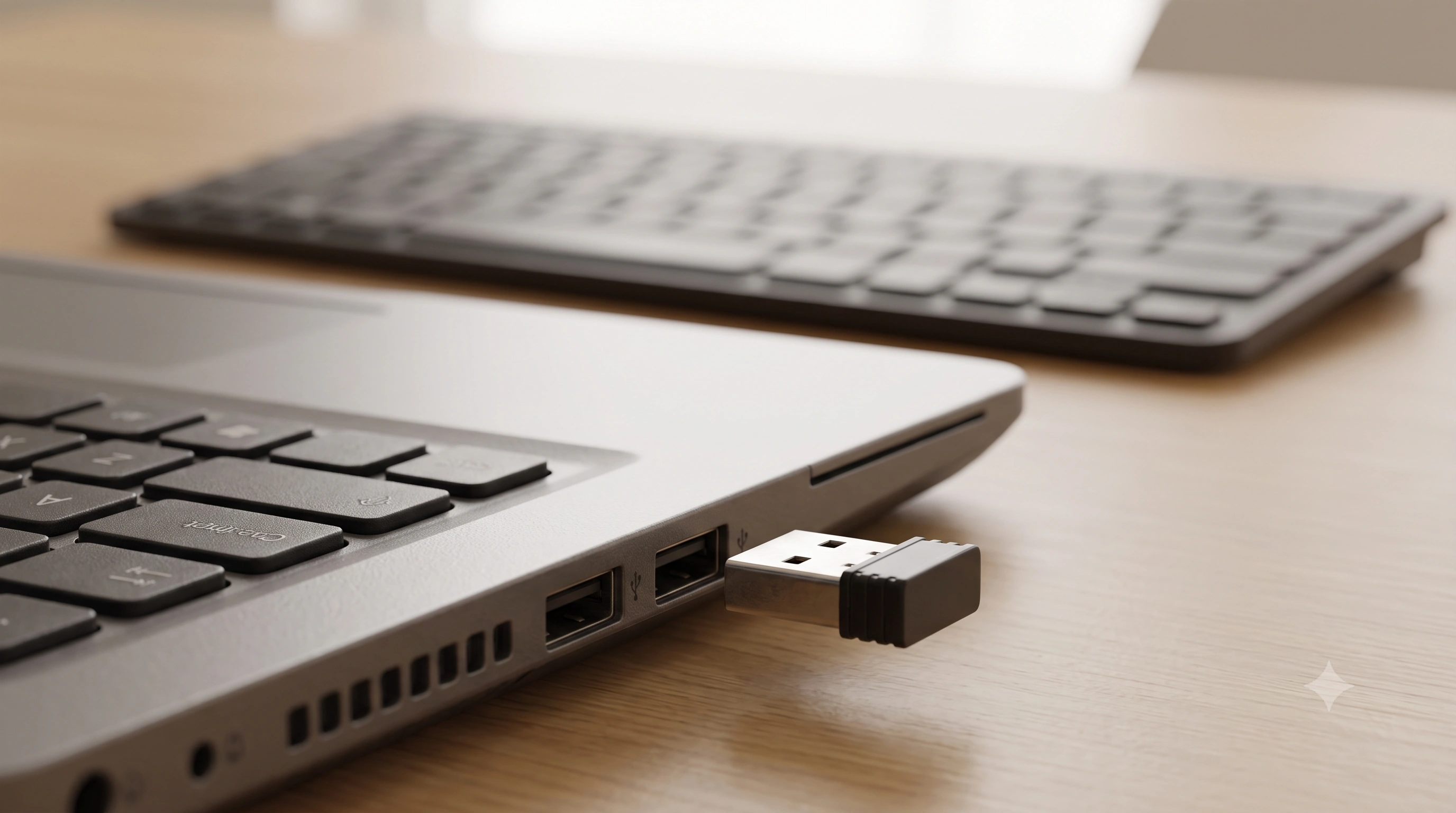
Step 4 — USB dongle vs. true Bluetooth
Many "wireless" keyboards don't use Bluetooth at all — they pair a proprietary 2.4GHz radio with a small USB receiver, and the fix differs from a true Bluetooth issue:
- A keyboard that came with a small USB dongle is using a 2.4GHz receiver, not Bluetooth — there's no Bluetooth menu involved, and the dongle simply needs to be plugged in and healthy.
- Reseat the dongle — unplug it, wait a few seconds, and try a different USB port, ideally directly on the computer rather than a hub or monitor. A partially-seated dongle is an easy-to-miss cause of dropped connections.
- Avoid USB 3.0 ports and hubs where possible. USB 3.0 controllers and cables are well-documented sources of interference in the same 2.4GHz band Bluetooth and most dongles use, causing stutter or erratic typing. A USB 2.0 port, or a short extension cable that moves the dongle away from other USB 3.0 gear, often clears it.
- If the dongle is lost, most proprietary receivers can't be replaced with a generic one — check whether your model also has a Bluetooth mode before assuming you need a whole new keyboard.
Step 5 — Toggle Bluetooth off and restart the driver
If the keyboard pairs but the connection is unstable, resetting the Bluetooth stack on the computer's side often clears it without touching the keyboard at all.
- Windows: Turn Bluetooth off in Settings, wait 10 seconds, turn it back on. If that doesn't help, open Device Manager → Bluetooth, right-click the adapter → Disable device, then Enable device to force a full driver reload — or grab a driver update from the adapter or laptop maker's site as a last resort.
- macOS: Hold Shift + Option and click the Bluetooth menu-bar icon to reveal the hidden Debug menu, then choose Reset the Bluetooth module — a deeper reset than a simple toggle that resolves many stuck pairings.
- A full restart resets the driver stack the same way, and is worth trying if the options above aren't available.
Microsoft'sFix Bluetooth problems in Windowsguide covers driver updates and adapter resets in more depth; Apple'sMagic Keyboard, Mouse, or Trackpad connection guidecovers the same ground for macOS.
Step 6 — Remember: Bluetooth usually holds one pairing at a time
A Bluetooth keyboard can typically stay actively connected to only one device, even if several devices remember it. If it was last used with your phone or another laptop, it may still be quietly connected there — invisible to you, but enough to block this computer.
- Turn Bluetooth off on any other device the keyboard might still be linked to, or move it out of range.
- If your keyboard has multi-device channel keys (often
Fn + 1/2/3), make sure you're on the channel you actually paired with this computer — the wrong channel silently switches to a different, empty pairing slot. - Some boards support Bluetooth and a 2.4GHz dongle simultaneously but transmit over only one at a time — check for a physical "BT / 2.4G" mode switch on the underside.
Step 7 — Distance and interference
Bluetooth's practical range is shorter than its rated range once obstacles are involved. Keep the keyboard within a few feet of the computer during setup. Metal laptop chassis and desks packed with other 2.4GHz devices (mice, headphones, chargers, Wi-Fi routers) compete for the same spectrum and can stop pairing or cause intermittent drops even after a successful pair. If it works fine alone but drops once your other gear is back, interference — not a fault — is the cause; space devices out, or switch your router to the 5GHz band if it supports both.
Step 8 — Firmware and receiver software
Higher-end wireless keyboards, especially gaming boards, often ship companion software (Logitech Options+, Razer Synapse, Corsair iCUE, and similar) that updates the keyboard's or dongle's firmware. A stuck firmware version on either side is a less common but real cause of persistent failures that no amount of toggling will fix — worth checking before concluding the hardware itself has failed.
Step 9 — Use a wired keyboard to fix the problem
If your wireless keyboard is the only one you have and it won't connect at all, you can end up locked out of the settings menus you need to fix it. Keep a cheap wired USB keyboard on hand for exactly this: plug it in, navigate Bluetooth settings, remove stale pairings, disable/enable the adapter, or install a driver update — then switch back once the issue is resolved.
Step 10 — Once connected, verify every key actually works
A connected icon only confirms the radio link is up — it says nothing about whether every key is reaching your computer correctly. Bluetooth and 2.4GHz keyboards are also more prone than wired ones to reduced rollover and occasional dropped keystrokes under interference, so it's worth a real check.
Open the keyboard tester and press every key, including modifiers and the function row — each should light up on the on-screen layout. Run the typing test next to catch characters dropped or duplicated at speed, which can happen over a marginal wireless link even after keys test fine individually. For gamers holding several keys at once, theanti-ghosting test shows whether the wireless connection caps how many keys register together compared to a wired connection.