Keyboard Input Lag & Typing Delay: Causes and Fixes
A keyboard that feels like it's typing a beat behind you is almost always a software or connection problem, not a broken keyboard. Input lag has several independent causes stacked on top of each other, and most of them take under a minute to rule out. Here's how to find the actual source and fix it, on Windows and macOS.
What input lag actually is
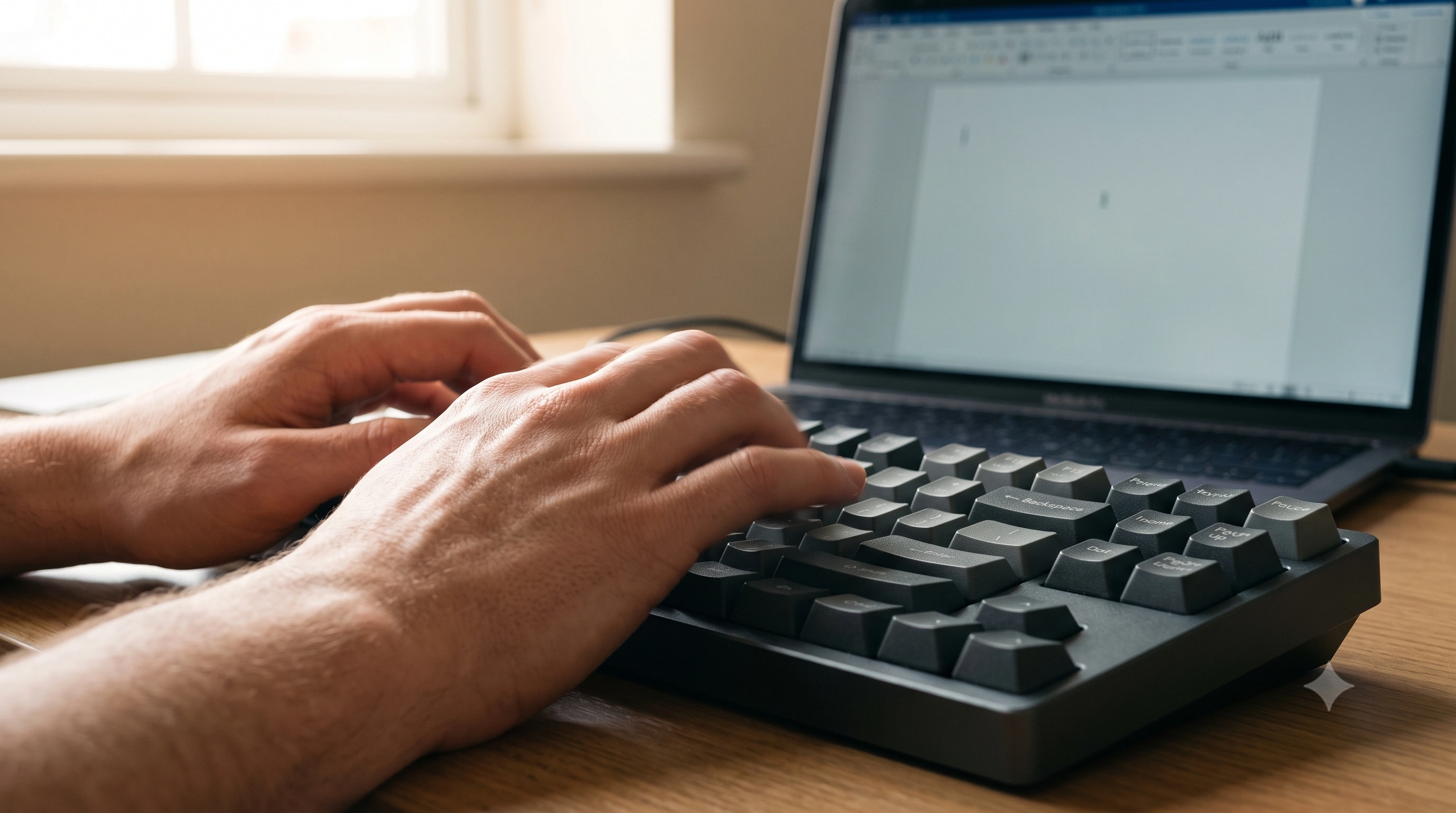
Input lag is the delay between physically pressing a key and that keystroke showing up on screen. It's not one thing — it's a chain: the switch closing, the keyboard's internal scan andpolling rate reporting it over USB or wireless, the OS processing the event, the app (browser, game, word processor) handling it, and the display drawing the new frame. Each link adds a small amount of time, and they add up.
The important thing to understand up front: the keyboard itself is rarely the biggest contributor. Its own switch-to-report latency is typically a few milliseconds. Software delays — an accessibility setting, a wireless link under interference, a browser choking on thirty tabs — are usually many times larger, and free to fix in minutes. That's why this guide works top-down: cheapest and most common causes first.
Check Windows Filter Keys first (the big one)
If typing has a genuine, consistent delay before each character appears — not just "not snappy" — the single most common cause on Windows is an accessibility feature called Filter Keysgetting switched on by accident. It deliberately makes the keyboard ignore brief or repeated keystrokes (designed to help people with hand tremors avoid accidental double presses), and it's notoriously easy to trigger without meaning to: holding the right Shift key for eight seconds turns it on automatically.
Here's how to check and turn it off:
- Press
Windows key + Uto jump straight to Accessibility settings (or Start → Settings → Accessibility). - Open Keyboard in the Accessibility list.
- Find Filter keys and switch it off if it's on.
- Also turn off the shortcut that re-enables it (an option to disable "turn on Filter Keys with the shortcut key"), so it can't flip back on next time you hold Shift too long.
For the full official walkthrough, see Microsoft's support article onmaking your keyboard easier to use, which covers Filter Keys directly. This one setting causes more "my keyboard suddenly feels laggy" reports than almost anything else here, so check it even if you don't remember turning anything on.
macOS has an equivalent called Slow Keys, which adds a deliberate delay before a keypress is accepted. Check System Settings → Accessibility → Keyboard and make sure it's off; if it's on, an "acceptance delay" slider controls the pause length, but turning the feature off entirely is the fastest fix if you didn't mean to enable it.
Before chasing anything else, get a number to work with: open thetyping speed test and type a short passage normally. If individual keystrokes feel like they're catching or arriving late while your WPM stays lower than expected even on words you know well, that's a strong sign the delay is real and system-level — not just in your head.
Wireless latency: Bluetooth vs 2.4GHz vs wired
How your keyboard connects has a real, measurable effect on latency, and the three common options are not equal:
- Wired (USB) — fastest and most consistent. No radio link to interfere with.
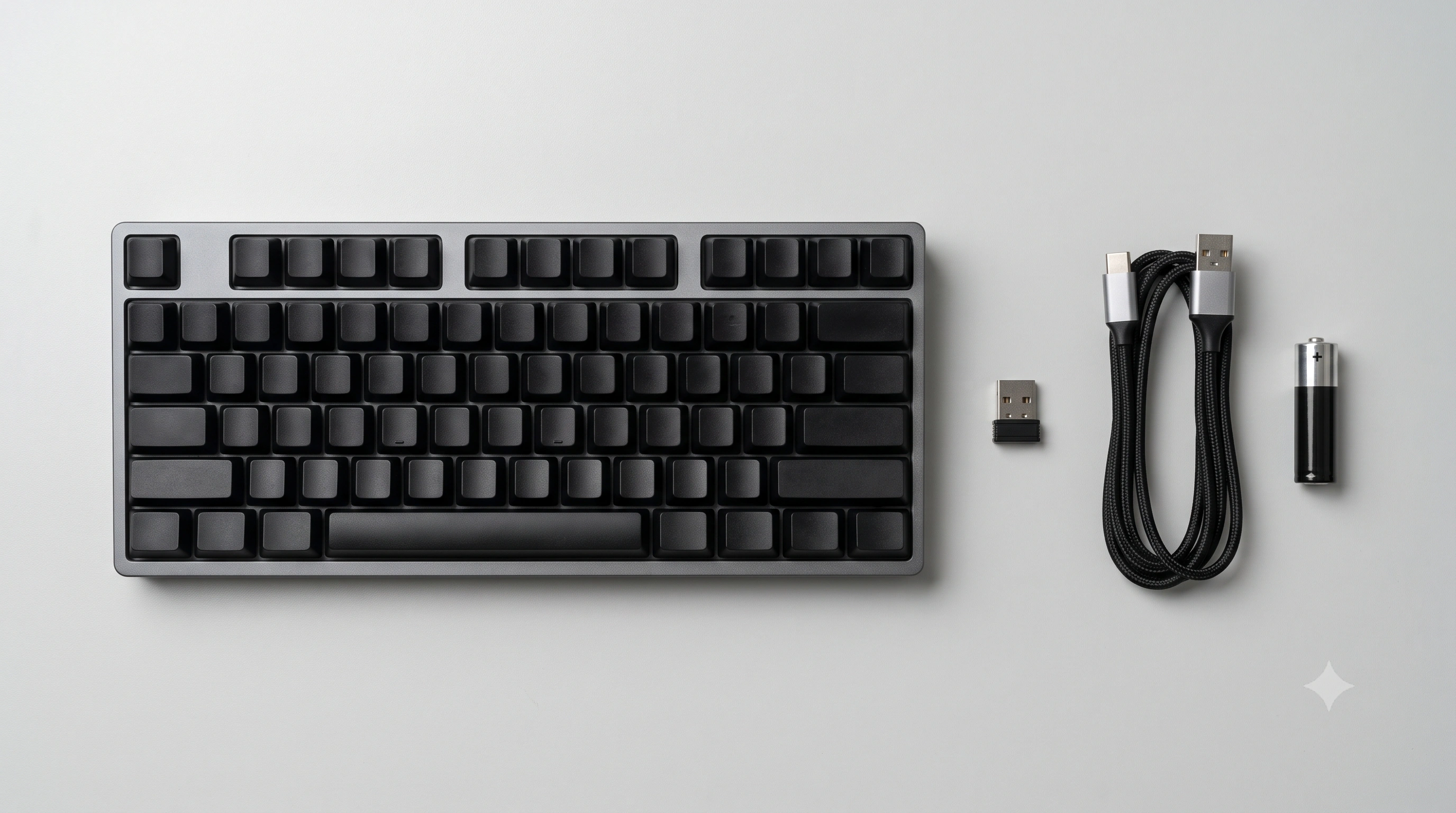
- 2.4GHz wireless dongle — close to wired in most cases. Its own dedicated protocol (rather than generic Bluetooth) is usually built for low latency, and it's the wireless option gamers reach for first.
- Bluetooth — typically the slowest of the three. Its connection intervals and power-saving behavior add latency, and it's more prone to interference from other devices sharing the same 2.4GHz band (Wi-Fi routers, other Bluetooth peripherals).
If a wireless keyboard feels laggy: switch from Bluetooth to its 2.4GHz dongle if it has one, move any Wi-Fi router or other wireless devices further away, charge the battery (low battery can throttle report rate on some boards), and — as a last resort — plug in a USB cable if the keyboard supports wired mode. If the lag disappears on wire, you've confirmed the wireless link was the cause.
Low polling rate, USB hubs, and bad cables
Polling rate is how often your keyboard reports its state to the computer, measured in Hz. A keyboard polling at 125Hz reports once every 8ms; one at 1000Hz reports every 1ms. In practice this is small next to Filter Keys or a flaky Bluetooth link, but it's easy to check: many gaming keyboards let you raise polling rate in their companion software, and if yours doesn't expose the setting it's likely fixed by the hardware. Estimate your own board's rate with the polling rate test — hold a key down and it derives the report rate from event timing. It won't match a lab oscilloscope, but it's useful for comparing before vs. after when you change a cable, port, or setting.
A few connection issues quietly rob you of both polling rate and consistency:
- USB hubs, docks, and KVM switches — especially cheap or unpowered ones, or old USB 2.0-only ports — can throttle report rate or add jitter. Plug directly into a port on the computer to test.
- A failing or low-quality USB cable/extension doesn't always drop the connection outright — it can just make it flaky, adding intermittent delay or dropped keystrokes that look exactly like lag rather than a hardware fault. Swap the cable and try a different port to isolate this.
- Outdated USB or chipset drivers — worth updating from Device Manager (Windows) if nothing else here explains the delay.
Background CPU load and too many browser tabs
Input events still have to be processed by the OS and whatever app you're typing into — if the CPU is busy, that processing gets delayed and typing feels laggy even though the keyboard reported on time. Common culprits: dozens of open browser tabs, background updates or antivirus scans (check Task Manager or Activity Monitor for a CPU spike), a laptop throttling itself in battery-saving mode, or the app itself doing heavy work on every keystroke (a bloated document, a web app re-rendering constantly). A quick way to isolate this: if typing feels instant in the typing test but laggy in one specific app, that app is the bottleneck — not the keyboard or OS.
Per-key debounce and switch type
Debounce is a small delay built into every keyboard's firmware that waits a few milliseconds after a switch closes before accepting the press as real, filtering out the micro-bounces a physical contact makes when it closes. It's necessary — without it you'd get chatter, one press registering as two — but too high a debounce time (configurable on some hot-swap/DIY boards) adds noticeable delay on top of actuation time. Lowered debounce on custom QMK/VIA firmware and now seeing occasional double letters? You've traded lag for chatter; find the smallest value that stops it, not the largest available — see keyboard double-typing / chatter if that's the symptom you're chasing. Switch type itself matters far less than people expect: the difference between switch families is a couple of milliseconds, dwarfed by everything above.
How to sanity-check your keyboard's responsiveness
Put it all together with a short, repeatable routine rather than guessing:
- Rule out Filter Keys (Windows) or Slow Keys (macOS) first — thirty seconds, and it explains a large share of reported "lag."
- Plug the keyboard in directly (skip hubs and extension cables) and, if it's wireless, compare its 2.4GHz dongle against Bluetooth.
- Close unnecessary browser tabs and background apps, then check Task Manager / Activity Monitor for a CPU spike.
- Run the polling rate test, changing one variable at a time (cable, port, connection mode) to see what moves the number.
- Type a real passage on the typing speed test — steady, expected WPM with no keys catching is the best everyday confirmation.
For a deeper technical breakdown of what contributes to keyboard latency and how reviewers measure it with lab equipment, RTINGS'keyboard latency testing methodologyis a good next read. And if everything above checks out but typing still feels off, separate "slow" from "wrong": a key that's genuinely unresponsive rather than just delayed is a different problem — seekeyboard keys not working to test and fix that instead.