Keyboard Keys Not Working? How to Test and Fix Them
When one or more keys stop responding, the cause is usually quick to pin down — a dead switch, debris under the cap, a software setting, or the keyboard hitting its rollover limit. Here's how to find out which, in a couple of minutes, without opening anything up.
Step 1 — Confirm exactly which keys are dead
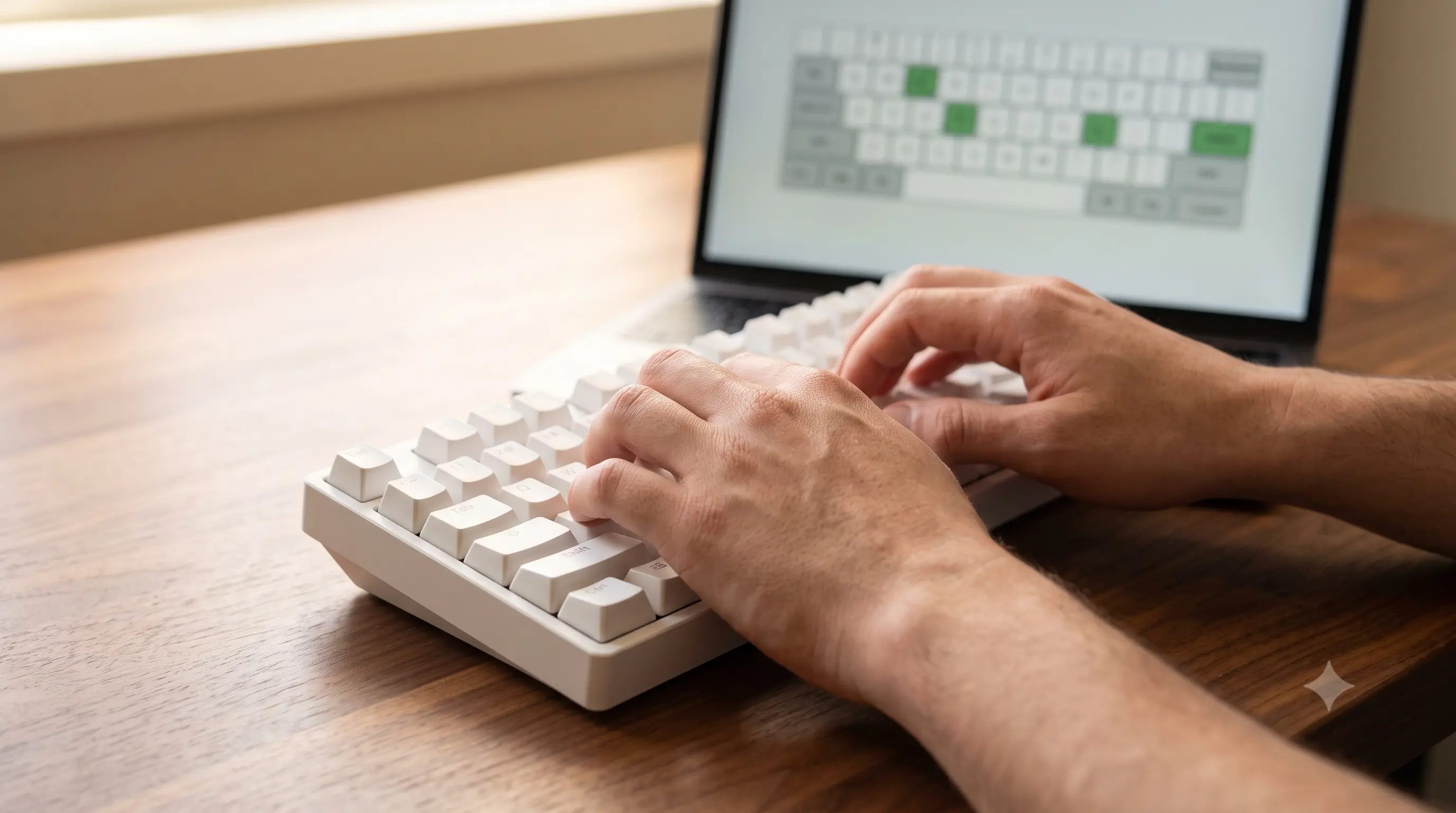
Before assuming hardware failure, find out precisely which keys register nothing. Open theonline keyboard tester, then press every key on the board — letters, numbers, the function row, arrows, and modifiers. Each key that works lights up on the on-screen layout; any key that stays dark when you press it is the one to investigate.
Make a note of the pattern. A single dead key usually means a switch or contact problem. A whole row or column going dark points to a ribbon-cable or trace fault — keyboards scan keys in a grid, so one broken trace can silence a whole line of keys at once. A key that shows as active the instant the page loads — without you touching it — is a stuck key or short, and one that flickers on and off on its own points to a failing connector rather than the switch itself.
Run the check now: open the keyboard tester in a second tab and keep it open while you read the rest of this guide — you'll want it for every step below.
Step 2 — Rule out the easy (non-hardware) causes
Most "dead key" reports aren't hardware at all. Check these first:
- Tab focus. Keys only register while the browser tab is focused — click the page once.
- Fn-lock or "game mode". These can disable the Windows key or the entire function row. Toggle them off (usually
Fn + Escor a dedicated switch on the back). - Connection. USB hubs, KVM switches and docks can drop presses. Plug the keyboard straight into the computer.
- Layout mismatch. If the key lights up but types the wrong character, the switch is fine — it's a software layout issue. See keyboard typing the wrong letters.
- Software remapping. Tools like PowerToys Keyboard Manager, Karabiner-Elements, or a manufacturer's own configurator can silently remap or disable a key system-wide. Temporarily disable or uninstall them and re-test.
- Sticky Keys / Filter Keys. On Windows, an accidental accessibility toggle (holding Shift five times) can make keys feel unresponsive or delayed. Check Settings → Accessibility → Keyboard.
If you're on a laptop, plug in a spare USB or Bluetooth keyboard and repeat the same key. If the external keyboard types fine but the built-in one doesn't, you've isolated the fault to the laptop's own keyboard hardware or its connector to the motherboard — that changes the repair path entirely (seefixing a dead key below).
Step 3 — Check for dropped keys under load
If keys work individually but drop out when you press several at once — common in games while holding movement plus an action key — the board isn't broken; it's reached its rollover limit (ghosting). Measure how many keys yours registers together on theanti-ghosting test, and readwhat ghosting and NKRO mean if the term is new. This is a genuinely different failure mode from a dead key: a rollover limit affects specificcombinations of keys depending on how the internal matrix is wired, while a dead key fails every single time, alone or in combination.

Step 4 — Catch a key that double-fires or sticks
A worn switch can send two presses from one tap ("chatter"), which reads as erratic rather than dead. Open the key event logger and tap the suspect key once, slowly — twokeydown events for a single press confirm a chattering switch. The logger exposes the browser's raw KeyboardEvent data (key, code, and timing), which is the same information any app receives — seeMDN's KeyboardEvent referenceif you want the technical detail on what each field means.
Chatter tends to get worse with age and dust, so a key that chatters occasionally today is likely to chatter more often in a few months. Debounce settings in some keyboard software can mask mild chatter — if yours has a QMK/VIA-style configurator, try raising the debounce time slightly before assuming the switch itself has failed.
Fixing a genuinely dead key
Once you've confirmed a key sends no event at all, work through these in order of effort:
- Blow out debris with a can of compressed air around and under the keycap, holding the can upright to avoid propellant residue.
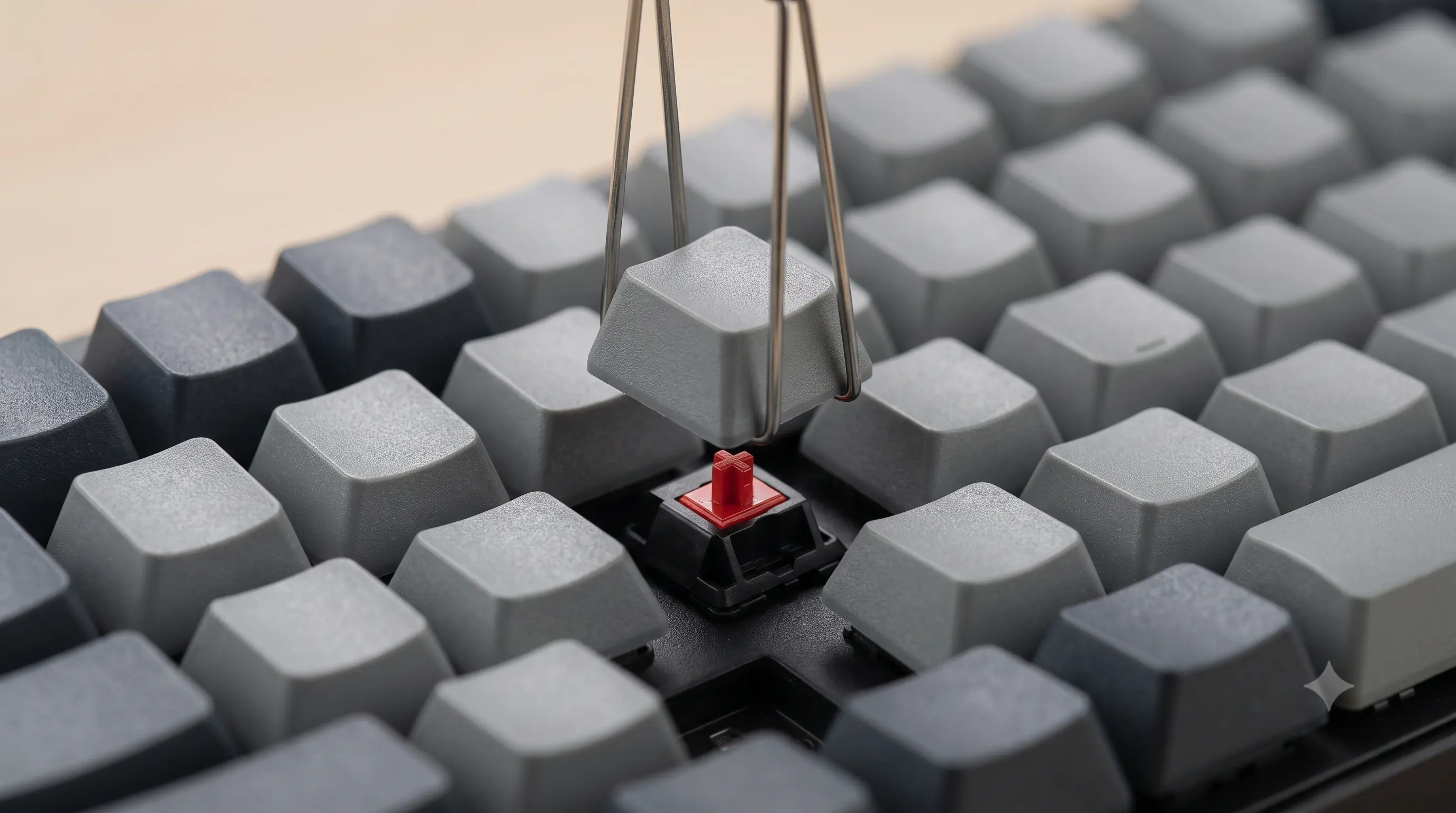
- Remove the keycap with a keycap puller (pull straight up, never at an angle — twisting or angled force can crack the stem) and apply a little isopropyl alcohol (90%+) to the switch, then work it a few times before it dries.
- Still dead? Test with a multimeter in continuity mode across the switch's two legs while holding it closed — no continuity confirms the switch itself has failed internally, not just dirt.
- On a hot-swap board, pull the switch with a switch puller and drop in a spare — the permanent fix for a single failed switch, and reversible if you get it wrong. On a soldered board, replacing a switch means desoldering, which is a bigger job but still routine for anyone comfortable with a soldering iron.
- If a whole cluster or row is dead, suspect the ribbon cable, matrix trace, or controller rather than the switches — worth a repair quote or a cheap replacement PCB before writing off the whole board.
For step-by-step teardown and switch-replacement photos for specific keyboard models, iFixit'skeyboard repair guidesare a solid reference before you open anything up.
When it's not the keyboard at all
If the same key is dead in the tester and everywhere else, it's almost certainly hardware. But if it works in the tester and fails only in one app, the problem is that app's shortcuts or a remapping tool — not the keyboard. Re-run the key tester as your source of truth: it reads the raw browser key events, so a key that lights up there is physically working.
One more edge case worth ruling out: some laptops disable specific keys automatically when a certain driver or OEM utility crashes (common with function-row media keys). A quick reboot rules this out in seconds and costs nothing, so it's worth doing before any physical fix.