Keyboard Typing the Wrong Letters or Symbols? Here's the Fix
If pressing one key produces a different character — quotes and @ swapped, £ where # should be, or letters turning into symbols — the good news is your keyboard is almost certainly fine. This is nearly always a software keyboard-layout mismatch, and it takes a minute to fix.
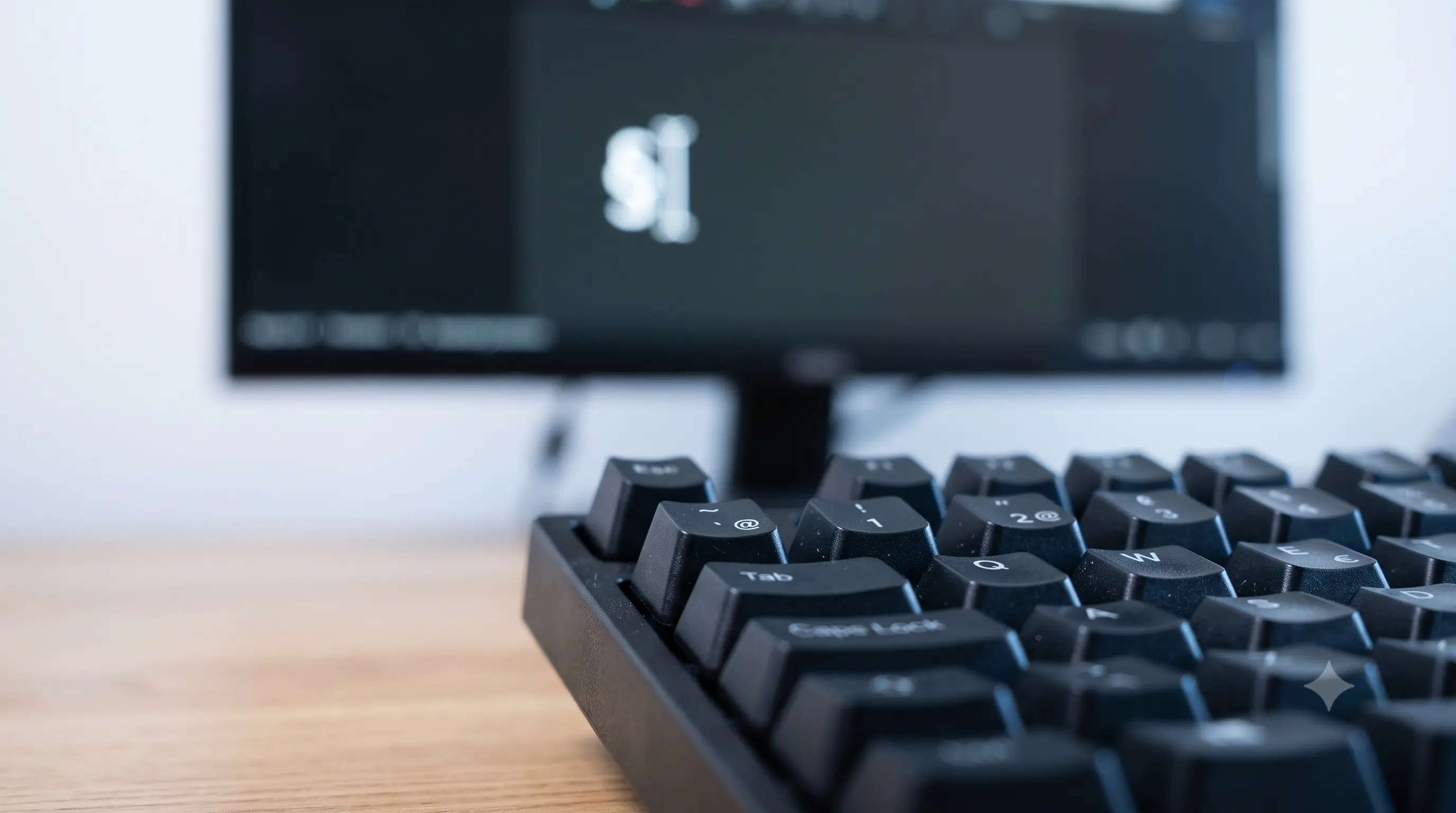
First, confirm it's software, not hardware
There's a quick test that settles it. Open the keyboard tester and press the misbehaving key. If the correct key lights up on the on-screen layout — the A key highlights when you press A — then the physical switch is working perfectly. The wrong characteris coming from your operating system's active layout, not the keyboard.
For proof at the event level, open the key event logger and press the key. You'll see two values: code (the physical key, e.g. KeyQ) stays constant, whilekey (the character produced) is whatever your layout maps it to. Whencode is right but key is wrong, it's a layout problem — full stop. This distinction exists at the browser level too: code reports the physical position regardless of layout, while key is the layout-adjusted character — seeMDN's KeyboardEvent documentationfor the full field reference.
Confirm it in under a minute: open the key event logger and press the key that's producing the wrong character. If code matches the physical key butkey doesn't, skip straight to the fix below.
Why this happens
Your OS maps physical keys to characters using a selected keyboard layout. A US keyboard running under a UK, AZERTY (French), QWERTZ (German), or Dvorak layout will swap symbols and even letters. The classic signs:
@and"swapped, or#producing£— US vs UK.Q/AandW/Zswapped — a QWERTY board on an AZERTY layout.- Numbers needing Shift, or punctuation landing in odd places — QWERTZ or Dvorak.
- A stuck modifier (Alt/AltGr) can also shift every key into its alternate character.
YandZswapped with everything else correct — the single most common QWERTY-vs-QWERTZ tell.
It's also worth knowing this can happen at more than one layer. Most operating systems apply the layout mapping in software, but some external keyboards — especially compact or programmable ones — have their own onboard layout or key-remapping firmware (often configured via a companion app or QMK/VIA). If switching the OS layout doesn't fix it, check whether the keyboard itself has a layout setting.
Fix it on Windows
- Open Settings → Time & language → Language & region.
- Under your language, open the options and check the installed keyboards.
- Remove layouts you don't use, and make sure the one matching your physical board (e.g. "US") is set.
- Note the taskbar language switcher (or
Win + Space) — a stray press can flip layouts mid-session. - If you regularly need a specific regional layout (say, US International for accented characters), install it deliberately and pin it, rather than letting Windows guess from your region.
Microsoft's own reference for this settings path, including screenshots for the current version of Windows, is here:Manage language and keyboard layout settings in Windows.
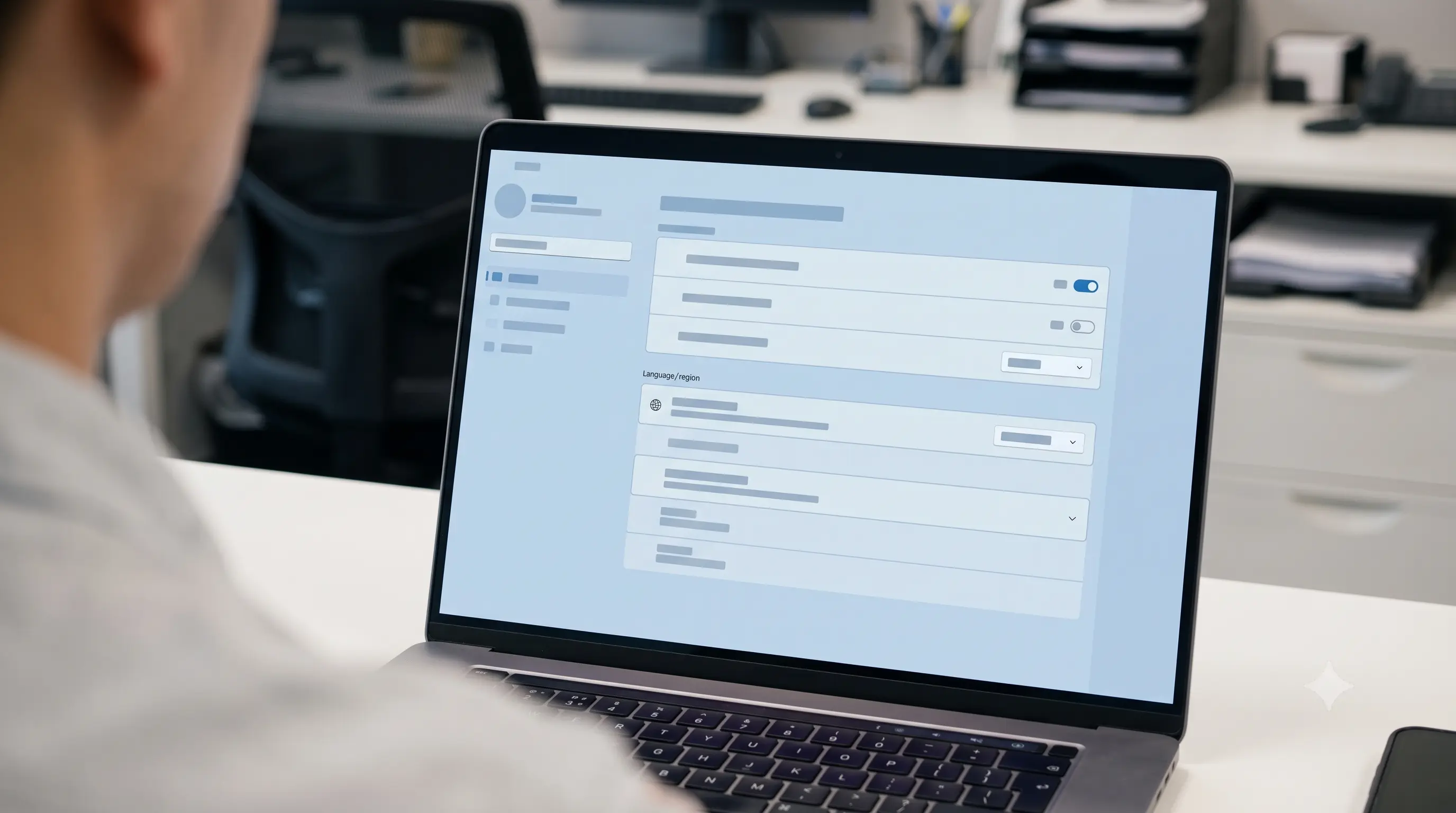
Fix it on macOS
- Open System Settings → Keyboard → Text Input → Input Sources → Edit.
- Add the input source that matches your keyboard (e.g. "U.S.") and remove mismatched ones.
- Turn off "automatically switch" if the layout keeps changing on its own.
- If you use both a US and an ISO/UK physical keyboard on the same Mac, macOS can't always tell them apart automatically — set the input source manually per session rather than relying on auto-detection.
Apple's official walkthrough, including how to switch input sources on the fly withControl + Space, is here:Change Input Sources settings on Mac.
Still wrong after switching layouts?
If the character is still wrong with the correct layout selected, re-check the physical key in thetester. If the wrong key lights up (you press A, but S highlights), that's the rare hardware case — see keyboard keys not working for the switch-level diagnosis. And if only one key is affected while everything else is correct, suspect a remapping tool (PowerToys, Karabiner, AutoHotkey) intercepting that key — check its active rules before assuming anything about the layout again.
One more possibility on shared or public computers: a background app can install a system-wide keyboard hook for shortcuts (common in remote-desktop and streaming software) and inadvertently swallow or remap a key. Closing recently opened apps one at a time, then re-testing in thekeyboard tester, will isolate this quickly without touching any layout settings at all.