Laptop Keyboard Not Working? How to Fix It
A laptop keyboard that's gone quiet is stressful because it's built into the machine — you can't just swap it out and move on. The good news is that most cases aren't a dead keyboard at all; they're a driver, a setting, or a stuck key. Work through the steps below in order, easiest first, and you'll usually know exactly what's wrong within a few minutes.
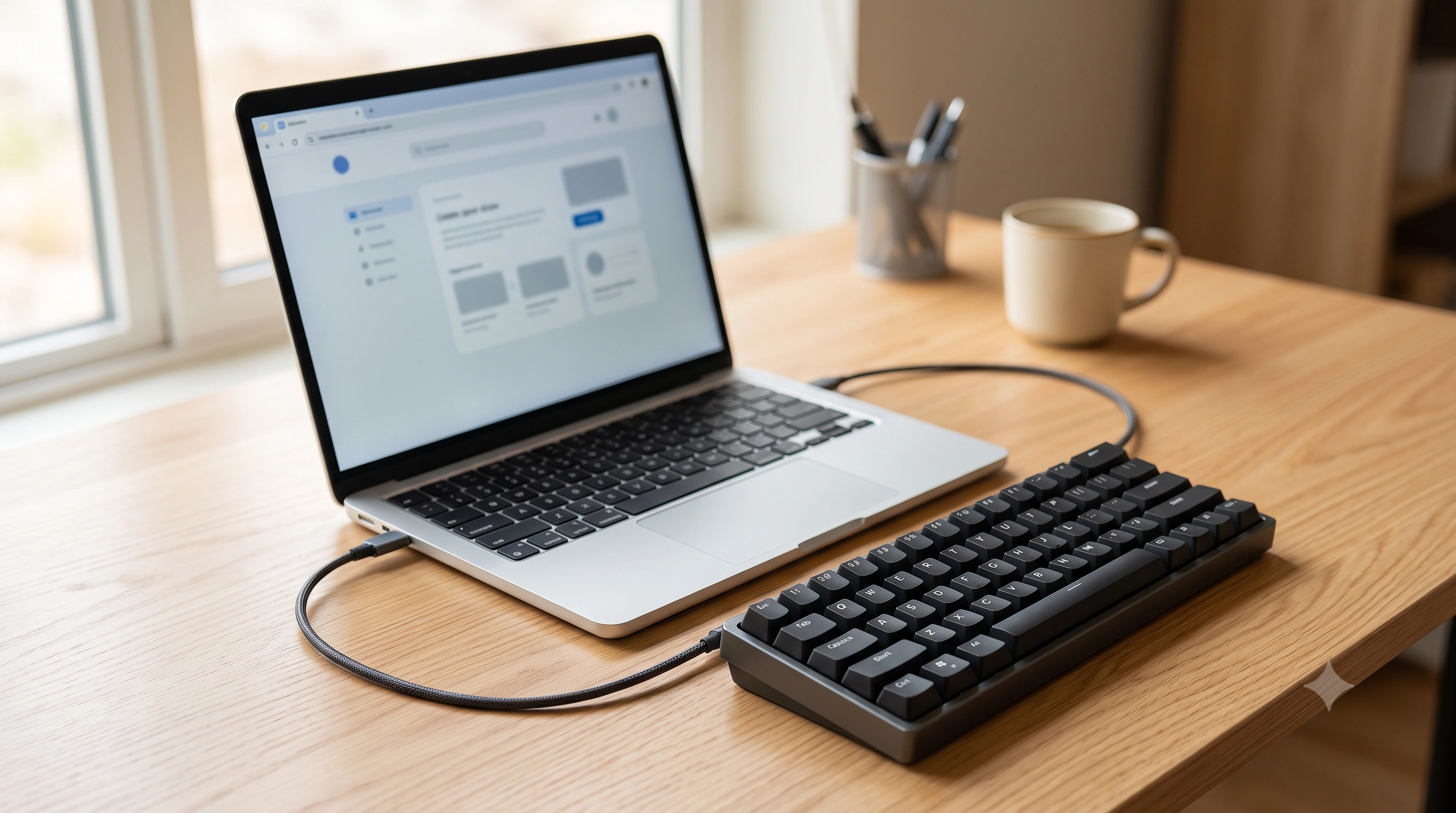
What's actually going on
"The keyboard isn't working" covers a few different problems, and the fix depends on which you have.The whole keyboard is dead — nothing types, not even at login — usually points to a driver, connector, or accessibility setting, not every switch failing at once. Some keys work and others don't is more often physical: debris, a spill, or a damaged ribbon cable affecting one section of the internal matrix. Keys work but type the wrong thing is almost never hardware — see keyboard keys not working if that's your symptom instead. This guide covers keys (or the whole board) simply not responding.
Step 1 — Isolate software from hardware in under a minute
Before touching a single setting, plug a spare USB or Bluetooth keyboard into the laptop and try typing. This one test tells you almost everything:
- External keyboard works fine. The OS and computer are healthy — the fault is isolated to the built-in keyboard's driver, its internal connection, or the hardware.
- External keyboard doesn't work either. That points away from the keyboard entirely — a frozen system, or an accessibility setting affecting all input. Try a hard restart next.
No spare keyboard handy? Use the on-screen keyboard instead (Win + Ctrl + O on Windows, or the toggle in macOS Accessibility settings) to navigate while you troubleshoot.
Step 2 — The 30-second fixes
Try these before anything more involved. Together they resolve a surprising share of "dead" keyboards:
- Restart, don't just sleep. A full shutdown and cold boot clears a hung keyboard driver far more reliably than waking from sleep, which sometimes never re-initializes the keyboard controller.
- Check for a stuck Fn-lock or kill switch. Some laptops have a keyboard-lock key or game-mode toggle (often
Fn + Esc, or a dedicated switch) that disables input entirely. - Rule out Filter Keys / Sticky Keys (Windows). Holding a key by accident, or pressing Shift five times, triggers an accessibility change to how the keyboard behaves. Go to Settings → Accessibility → Keyboard and turn both off, then re-test.
- Unplug anything in between. A docking station, hub, or KVM switch can silently drop the internal keyboard's connection — undock and test directly.
As soon as any of these gets the keyboard responding, open the keyboard tester and press every key — letters, numbers, function row, arrows, modifiers — to confirm the fix worked everywhere, not just on the keys you happened to try.
Step 3 — Fix the keyboard driver (Windows)
If the built-in keyboard is dead but an external one works, a corrupted driver is the most common Windows cause — especially right after a Windows Update. Open Device Manager(right-click Start) and expand Keyboards:
- Right-click the built-in keyboard entry (listed as "Standard PS/2 Keyboard" or "HID Keyboard Device") and choose Uninstall device, then restart. Windows reinstalls a fresh driver on boot — this alone fixes a huge share of cases.
- Still broken? Right-click the entry again, choose Properties → Driver, and click Roll Back Driver if available — greyed out means none is stored.
- No rollback option? Choose Update driver → Search automatically, or grab a model-specific driver from your laptop maker's support page.
- Fault appeared right after a Windows Update? Open Settings → Windows Update → Update history → Uninstall updates and remove the latest one.
Microsoft's troubleshooting guide covers further Windows-specific steps, including language/region keyboard settings that can look like a dead-key problem:Mouse and keyboard problems in Windows.
Step 4 — macOS equivalents
MacBooks have no Device Manager, but the same categories of fix exist under different names:
- Slow Keys. Go to System Settings → Accessibility → Keyboard and turn Slow Keys off — when it's on, you must hold a key well past a normal press before it registers, which feels exactly like a dead keyboard.
- Restart, then reset the SMC/NVRAM. Apple Silicon Macs reset the System Management Controller automatically on restart; on Intel Macs, look up your model's SMC/NVRAM key combination.
- Run Apple Diagnostics. Restart while holding
Dfor a hardware self-test that flags a genuine keyboard fault versus a software glitch.
Apple's support guide covers the full troubleshooting flow, including what to do if the machine doesn't respond to any key at all:If your Mac doesn't respond to key presses.

Step 5 — One or two keys are stuck or dead, not the whole board
If only a handful of keys misbehave, the cause is almost always physical, not a driver issue:
- Tilt the laptop and blow compressed air around and under the affected keys, holding the can upright to avoid spraying propellant.
- If a key feels physically stuck, a drop of isopropyl alcohol (90%+) along the keycap edge, worked in with a few presses, often frees it as it evaporates.
- Laptop keycaps sit on delicate scissor or butterfly-style clips — easy to damage by prying. If one has popped off, align the small plastic hinges and press straight down rather than forcing it.
- A key that reads as constantly "pressed" without you touching it is a short or debris bridging the contact — clean it before assuming the switch is dead.
Step 6 — Spilled liquid, ribbon cables, and when to see a tech
Liquid spills are the one scenario where speed matters more than any software fix:
- Shut the laptop down immediately — don't just close the lid — and unplug the charger. Continuing to run power through a wet keyboard is what turns a cleanable spill into a fried motherboard.
- Turn the laptop upside down in an inverted "V" so liquid drains away from the logic board, and let it air-dry at least 24–48 hours before powering on. Sugary drinks leave sticky residue that keeps causing stuck keys for weeks — that usually needs a professional clean, not just time.
A few other symptoms point to a hardware repair rather than a DIY fix: an entirerow or column of keys dead at once (a broken ribbon cable or matrix trace — laptops scan keys in a grid, same as desktop boards), a keyboard that cuts out when you flex or open the lid (a loose connector), or visible corrosion after a spill. A laptop keyboard is a flat assembly on a thin ribbon cable to the motherboard — replacing it is routine for a repair tech but easy to damage further if you're not used to laptop teardowns, so it's worth a repair quote at that point.
Step 7 — Use an external keyboard as a stopgap
While you wait on a driver fix, a part, or a repair appointment, a USB or Bluetooth keyboard keeps you working immediately — no configuration needed on Windows or macOS. It's also a genuinely permanent option for a laptop that otherwise runs fine: plenty of people keep one on the desk full-time and use the built-in keyboard only when traveling.
Whichever fix gets you there, don't just eyeball it — run a full pass over thekeyboard tester afterward to confirm every key registers, including the easy-to-miss ones like function keys, arrows, and modifiers.