Function Keys (Fn / F1–F12) Not Working? How to Fix
Function keys almost never fail as hardware. Nearly every 'F1–F12 not working' report is actually the row doing exactly what it's set to do — sending media and brightness shortcuts instead of F-key codes. Here's how to tell the difference and fix each cause, on Windows and macOS.
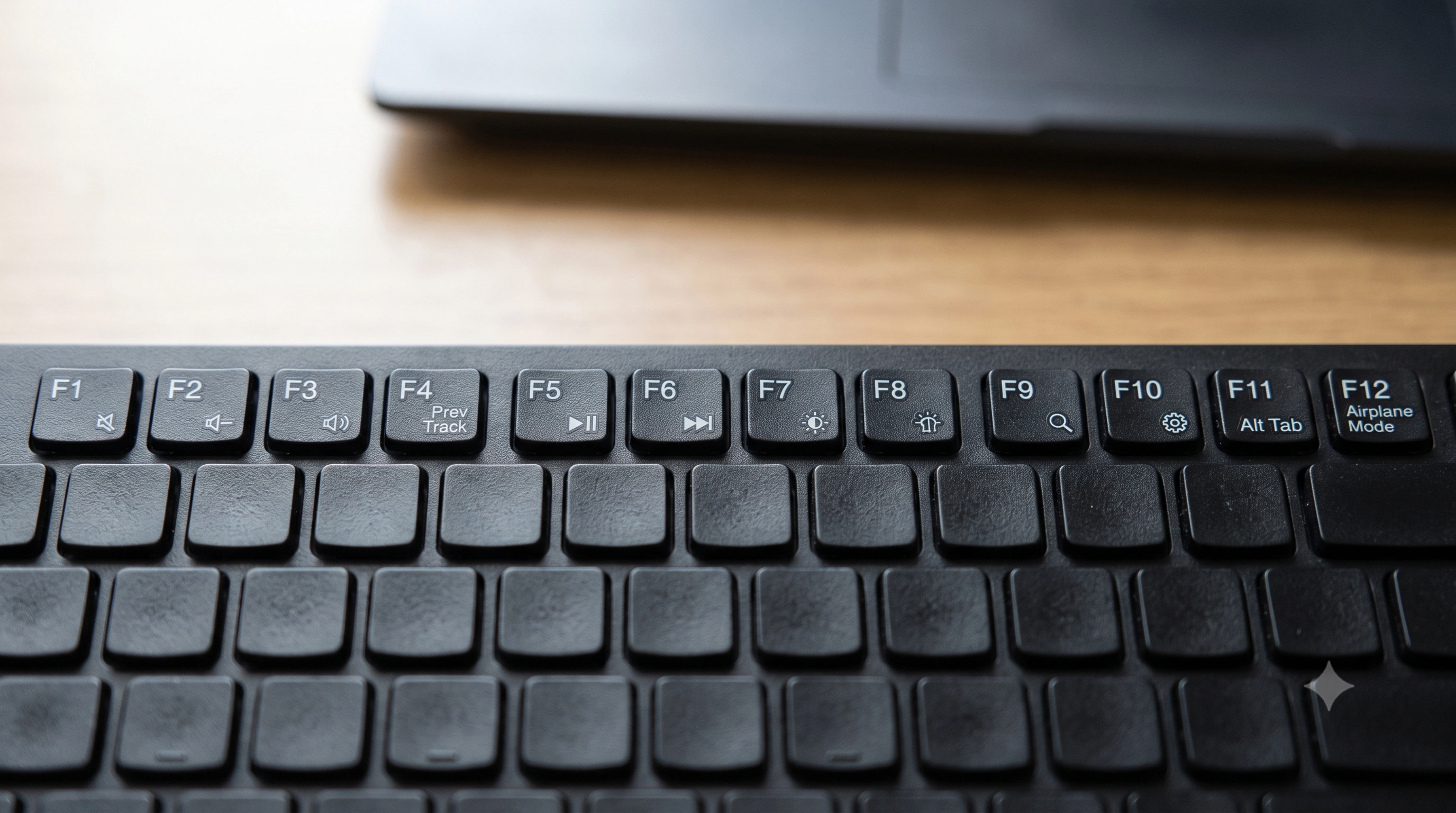
The #1 cause: your F-keys are in media-key mode
Look closely at your top row. On almost every laptop and many desktop keyboards, each function key doubles as a shortcut — mute, volume, brightness, media playback, airplane mode — printed as a small icon above or below the F-number. The keyboard controller has to decide which signal to send when you press that key, and manufacturers ship most consumer laptops with the media function set as the default. That's why pressing F5 dims your screen instead of doing whatever F5 does in your app, and why F1–F12 can feel completely "broken" in software that expects real function-key codes.
The fix is almost always a single key combo: hold Fn and press the function key you want — for example Fn + F5 — to get the traditional F-key signal instead of the media shortcut. If you want the row to default to F-keys instead of media keys, look for aFn Lock toggle, most commonly Fn + Esc (the Esc key often has a small padlock icon on it), or a dedicated Fn Lock key on the top row itself. Toggling it flips which behavior is the default and which needs the Fn modifier — press it again to flip back.
- Watch for a small LED (often on the Esc or Caps Lock key) that lights up when Fn Lock is engaged.
- Some keyboards use
Fn + F-lockor a physical switch on the side/back instead ofFn + Esc— check your model's manual ifFn + Escdoes nothing. - External keyboards with a dedicated F-key row and no icons on it don't have this problem — this mostly affects laptops and compact keyboards.
Verify exactly what each key is sending
Don't guess — confirm it. Open the key event logger and press each function key one at a time. It shows the raw key and code values the browser receives for every press, so you can see directly whether F5 is arriving as "F5" or whether the keyboard is instead sending a media/consumer-control signal that the OS intercepts before it ever becomes an F-key (the logger will show nothing for that press, or a different key entirely, such as a volume command). This one check tells you whether you're dealing with a mode setting, a remap, or a genuinely dead key — which changes which fix below applies.
Run the check now: open the key event logger and press F1 through F12 in order. A key that logs nothing at all — even with Fn held — is the one worth investigating as a hardware fault; everything else is a settings fix.
Change the default in BIOS/UEFI
If you'd rather not hold Fn every time — or if Fn Lock doesn't stick after a restart — most laptops let you flip the default permanently in firmware:
- Restart the laptop and enter BIOS/UEFI setup (commonly
F2,F10,Del, orEscat boot — the exact key is usually shown briefly on the manufacturer's splash screen). - Look for a setting named "Function key behavior", "Action Keys Mode", "Hotkey Mode", or similar — the wording varies by brand (Dell, HP, Lenovo, ASUS and Acer all phrase it slightly differently).
- Set it to "Function Key" (sometimes labeled "Multimedia Key" for the opposite mode) so F1–F12 send standard function codes by default, with the media shortcuts moved behind
Fninstead. - Save and exit (usually
F10), then let the laptop boot normally and re-test with the key event logger.
This setting persists across reboots and OS reinstalls, since it lives in firmware rather than Windows or macOS — useful if you use F-keys constantly (developers, spreadsheet power users, some games) and don't want to think about Fn Lock at all.
Vendor hotkey software and drivers
On Windows, function-key behavior can also be controlled — or silently overridden — by the manufacturer's own utility, not just the BIOS. If F-keys work correctly in the BIOS/UEFI screen but misbehave once Windows loads, the software layer is the more likely suspect:
- HP: HP Hotkey Support or HP System Event Utility manages the Fn row; reinstalling it from HP's support site often fixes keys that stopped responding after a Windows update.
- Dell: Dell Peripheral Manager or Dell Power Manager can intercept function-key presses for its own shortcuts.
- Lenovo: Lenovo Vantage (or the older Hotkey Features Integration driver on ThinkPads) governs Fn Lock and F-key defaults — a corrupted install is a common cause of a row that stops responding.
- ASUS: MyASUS / ATK Package handles the function row on ROG and ZenBook models.
If a utility recently updated or crashed right before the keys stopped working, uninstall it, reboot, and reinstall the latest version from the manufacturer's support site rather than the version bundled with Windows Update. For general keyboard troubleshooting when the cause isn't obviously vendor software, seeMicrosoft's keyboard troubleshooting guide.
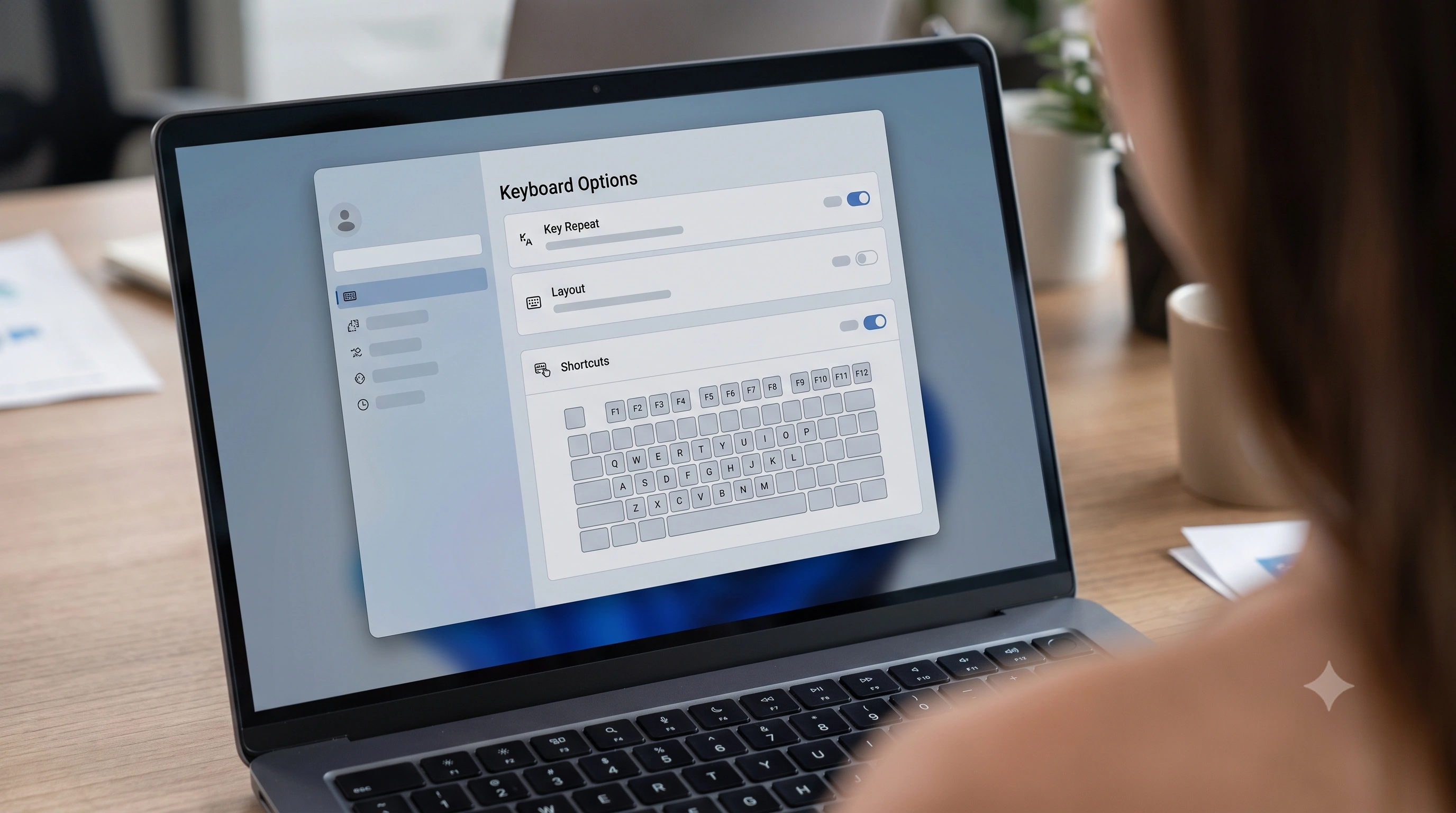
macOS: "Use F1, F2, etc. as standard function keys"
macOS behaves almost identically to a media-key-default laptop, just controlled through system settings instead of a BIOS. By default, F1–F12 trigger brightness, Mission Control, keyboard illumination, volume and media controls — pressing Fn gives you the traditional F-key signal instead, exactly like on Windows laptops.
- Open System Settings → Keyboard (System Preferences → Keyboard on older macOS).
- Enable "Use F1, F2, etc. keys as standard function keys."
- Once enabled, F1–F12 send standard function-key codes directly, and you hold
Fnto get the brightness/volume/media shortcuts instead — the defaults are reversed from out-of-the-box behavior.
If individual apps need different function-key behavior — some prefer media keys always active — macOS also lets you override this per app under Keyboard → Keyboard Shortcuts → Function Keys. For the full official walkthrough, including keyboard-specific notes for different Mac models, seeApple's keyboard preferences support page.
One dead F-key vs. the whole row
The pattern of failure tells you a lot before you change a single setting:
- The whole row does nothing, even with Fn held: almost certainly a settings or driver issue (Fn Lock, BIOS mode, or vendor software), not hardware — a whole row failing electrically at once is rare.
- The whole row sends media shortcuts instead of F-key codes: it's working correctly, just in its default mode — see the Fn Lock and BIOS sections above.
- Only one F-key is dead, in every mode: worth treating as hardware — same diagnosis path as any other single dead key (debris, a worn switch, a connector fault). See keyboard keys not working.
- Keys work standalone but drop out when combined with others: that's a rollover limit, not a broken F-key — see what is keyboard ghosting.
To isolate a single suspect key, open the keyboard tester and press every key in the function row in order. Any key that never lights up — regardless of Fn state — is the one to focus on; everything else lighting up normally confirms the row itself is electrically fine.
Quick checklist
- Try
Fn + F-keyfirst — this alone fixes the majority of cases. - Toggle Fn Lock (
Fn + Escon most keyboards) if you want the default behavior to change. - On Windows, check the BIOS/UEFI "Function key behavior" or "Action Keys Mode" setting for a permanent fix.
- Reinstall the manufacturer's hotkey utility (HP, Dell, Lenovo, ASUS) if keys behave inconsistently only inside Windows.
- On macOS, enable "Use F1, F2, etc. keys as standard function keys" in Keyboard settings.
- Confirm with the key event logger exactly what code each key sends before assuming anything is broken.
- Only treat a single, consistently silent key — in every mode — as a hardware problem.
Once you know which F-keys actually fire and in which mode, it's worth mapping out what your other shortcuts do too — run a pass through the keyboard shortcuts testerto confirm the combinations you rely on daily still reach the browser correctly.