Keyboard Double Typing (Key Chatter)? How to Stop It
You tap a key once and 'hello' comes out 'helllo'. That's key chatter — a single physical press that the switch reports as two (or more) separate keydown events. It's one of the most common keyboard complaints, it affects mechanical and membrane boards alike, and in most cases you can fix it yourself in a few minutes. Here's how to confirm it, what's actually causing it, and the fixes in order from easiest to most involved.
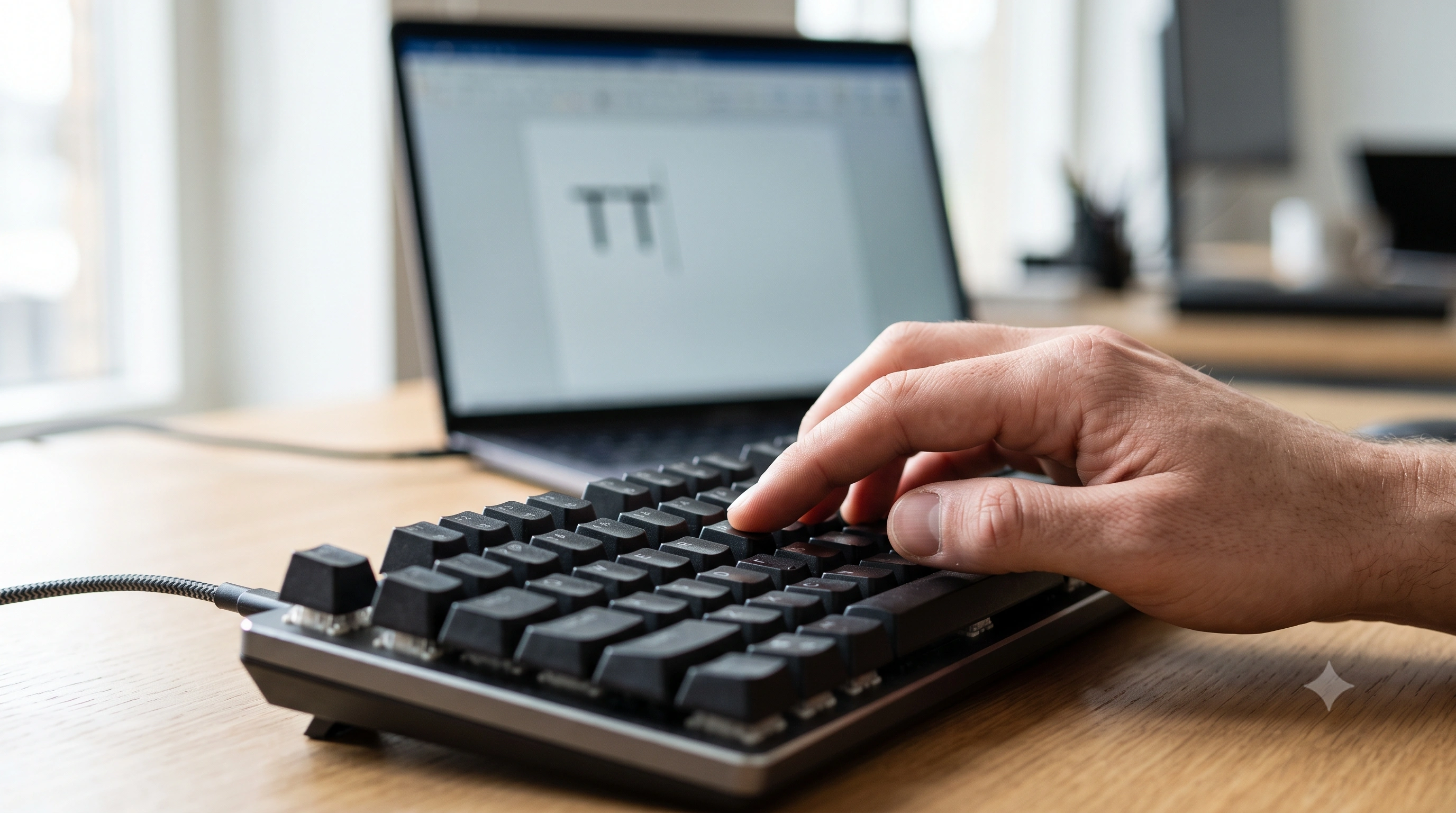
What key chatter actually is
Every time you press a key, the switch underneath closes an electrical contact and the keyboard's controller reports a keydown event. A good switch closes that contact cleanly, once. A chattering switch closes it, bounces open for a fraction of a millisecond, and closes again — and if that bounce happens slowly enough, the controller reads it as two genuine presses instead of one. The result on screen is a doubled letter, a duplicated space, or an extra digit, all from a single tap you only made once.
Chatter is different from a stuck key (which fires continuously without you touching it) and different from ghosting (which drops presses when several keys are held at once — see what ghosting and NKRO mean if that's closer to what you're seeing). Chatter is specifically about one press turning into more than one registered event on a key that otherwise works fine.
Step 1 — Confirm it's actually chatter
Before you start cleaning or reconfiguring anything, prove it's chatter rather than something in an app (autocorrect, a laggy text field, or a sticky key that's failing intermittently). Open thekey event logger, click into the page, and tap the suspect key once, slowly and deliberately. The logger prints the raw key, code, and timing for every event the browser receives — the same information any application on your computer gets. One clean tap producing two keydown entries in quick succession, typically a few milliseconds to a few tens of milliseconds apart, is a confirmed chatter event.
Run the same test on a few nearby keys and on the same key several dozen times — chatter is often intermittent, worse on some presses than others, and can get more frequent the longer you type in one session. If you want a wider check first, the keyboard tester is a fast way to see whether the problem is isolated to one key or shows up across several before you dig into the logger.
Confirm it now: open the key event logger in a second tab and tap the problem key once. If you see two keydown events for one press, you have chatter — jump tothe fixes below.
What causes chatter
Chatter almost always traces back to one of a handful of causes, and they apply tomechanical and membrane keyboards alike — membrane keys chatter too as their rubber dome and contact pad wear, not just switches on a mechanical board:
- A worn switch. The metal leaves inside a mechanical switch (or the contact pad under a membrane key) degrade with use — normal after tens of millions of presses, but it can happen much sooner on a cheap or defective unit.
- Dust or debris inside the switch housing interfering with a clean contact.
- Oxidation or grime on the contact surfaces, especially on older boards or ones used somewhere humid or smoky.
- Debounce time set too low. Firmware is supposed to filter out exactly this kind of bounce by ignoring any second signal within a short window after the first — if that window is too short (or disabled), chatter gets through.
- Outdated or buggy firmware — a known debounce bug that a firmware update has since fixed.
Fix 1 (easiest) — Clean the switch
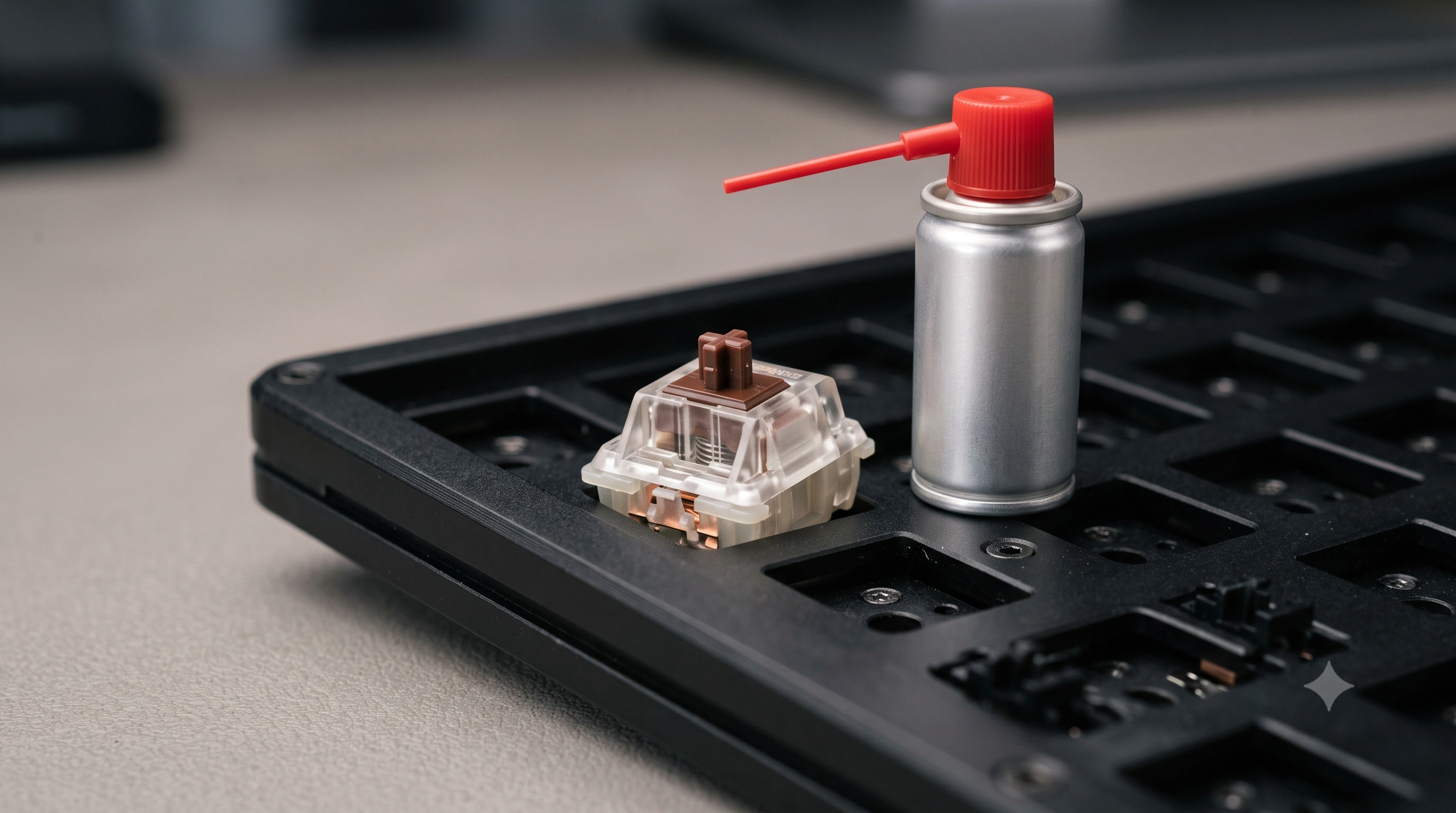
Start here — it resolves the majority of chatter cases and takes a couple of minutes. Blow compressed air into and around the switch with the keycap removed, holding the can upright to avoid spraying propellant residue into the switch. If that doesn't help, use an electrical contact cleaner (not a general household spray — you want one rated safe for switch contacts) sprayed sparingly into the switch housing, then press the key rapidly 20–30 times to work the cleaner across the contacts and let it evaporate before you type on it again. Re-test with the key event loggerafter each pass.
Fix 2 — Raise the debounce time in software
If cleaning doesn't fully fix it, the debounce window may simply be set too aggressively for that particular switch. Most enthusiast and many mainstream keyboards let you adjust this:
- On a QMK or VIA-based board, open VIA (or QMK Configurator) and increase the debounce value a few milliseconds at a time — see QMK's own debounce documentation for how the algorithm works and what a safe range looks like.
- On a manufacturer board (Logitech G HUB, Razer Synapse, Corsair iCUE, SteelSeries GG, and similar), look for a "debounce" or "response time" setting in the keyboard's configuration tab.
- Raise it in small steps and re-test — too high a debounce time can make legitimately fast, repeated presses (rapid-fire in games, for example) feel sluggish, so find the smallest value that stops the chatter.
This is a workaround for a marginal switch, not a permanent fix — but it's often good enough to keep using the board.
Fix 3 — Reseat or replace a hot-swap switch
If cleaning and debounce adjustments don't hold, the switch itself is the problem. On a hot-swap board, pull the switch straight up with a switch puller, check the pins for bends or debris, and reseat it firmly — a switch that isn't fully seated in its socket can chatter or drop presses intermittently. If reseating doesn't help, swap in a spare switch of the same type; this is the most reliable fix for a single chattering key and takes seconds on hot-swap hardware. On a soldered board, replacing a switch means desoldering the two legs first — still routine work, just a bigger job. iFixit'skeyboard repair guideswalk through teardown and switch replacement for a range of keyboard models.
Fix 4 — Update the keyboard's firmware
Check whether your keyboard's manufacturer (or QMK, if it's an open-source board) has shipped a firmware update since you bought it — debounce logic is exactly the kind of thing that gets patched after launch. Update through the manufacturer's software or QMK Toolbox, then re-test the affected key with theevent logger once more.
Fix 5 (last resort) — RMA or warranty replacement
If a switch keeps chattering after cleaning, a debounce increase, and reseating or swapping it, and the board is still under warranty, that's a legitimate defect — contact the manufacturer for an RMA rather than living with the workaround indefinitely. Keep a short screen recording or the key-event-logger output showing the doubled keydowns; it makes the support conversation much faster.
A quick note on Windows, macOS, and software debounce tools
Chatter is a hardware and firmware issue, not an operating-system one — it happens the same way whether you're on Windows, macOS, or Linux, and the fixes above apply regardless of platform. If you can't clean or reconfigure the keyboard itself (say, it's not yours, or it's not hot-swap and you don't want to solder), third-party software debounce tools exist for both platforms that filter out duplicate keydowns within a set window before they reach your apps. These are a genuine stopgap, but they treat the symptom — the switch is still degrading underneath — so use the hardware fixes above when you can.