Caps Lock Stuck or Typing in All Caps? How to Fix
Suddenly EVERYTHING YOU TYPE LOOKS LIKE THIS, and pressing Caps Lock again doesn't fix it. The cause is almost always one of three things: a physically stuck Caps Lock key, a stuck Shift key doing the same job by accident, or a software toggle like StickyKeys getting flipped on without you noticing. Here's how to tell them apart and fix each one, on Windows and macOS.
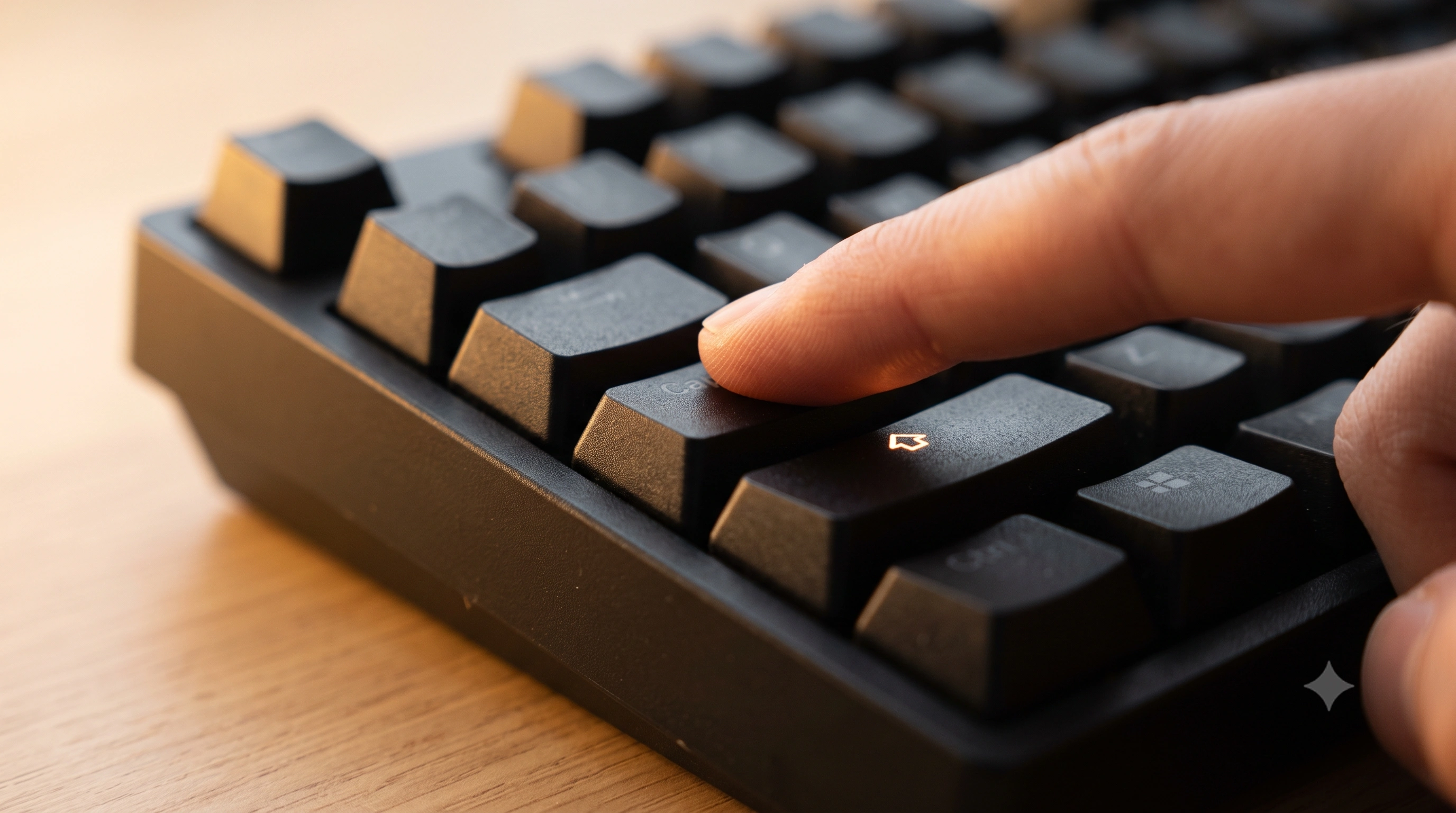
Is it Caps Lock, or a stuck Shift key?
Both look identical on screen — uppercase letters — but they're different faults with different fixes, so it's worth 30 seconds to tell them apart first.
- Caps Lock stuck on is a true toggle: it flips on and stays on, but numbers and symbol keys behave normally — pressing
1still gives you1, not!. Most keyboards (and both Windows and macOS) also show an indicator light while it's active. - A stuck or held Shift key also capitalizes letters, but it changes everythingShift touches — number keys type symbols instead of digits, and the Caps Lock indicator stays off the whole time. Type a row of numbers: if you get
!@#$%instead of12345, a key is holding Shift down, not Caps Lock.
One more check: if Caps Lock is genuinely stuck on, holding a real Shift key should briefly flip your typing back to lowercase. If that does nothing, lean toward a stuck Shift instead.
Step 1 — Watch which key is actually firing
Guessing from the symptom is a good start, but the fastest way to know for certain is to watch the raw key events. Every key sends a distinct code — Caps Lock reports as CapsLock, and the two Shift keys report separately as ShiftLeft and ShiftRight — so you can see exactly which one is misbehaving, and whether it's toggling normally or never releasing.
Open the key event logger in a second tab and leave your hands off the keyboard for a few seconds. If CapsLock or a Shift entry keeps appearing on its own with no keyup in between, you've confirmed a hardware fault on that exact key — not a software setting. If nothing logs at all while text still comes out capitalized, the cause is software, not the switch itself.
Now tap Caps Lock once, deliberately, and watch the log: a healthy key logs one clean keydownand keyup per press. A key that logs a burst of repeated events from a single tap, or that logs a press you never made, points to a worn switch rather than a setting — the same test used indiagnosing any keyboard key that isn't behaving.
Step 2 — Check for a physically stuck Caps Lock key
If the logger shows Caps Lock firing repeatedly or never releasing, the switch itself is the most likely culprit — usually dust, a crumb, or a sticky spill under the keycap rather than a dead switch.
- Blow compressed air around and under the Caps Lock keycap, holding the can upright.
- Pull the keycap straight up with a keycap puller (never twist or pry at an angle — that can crack the stem) and look for debris or residue on the stem and switch housing.
- Wipe the switch and the inside of the keycap with a cotton swab lightly dampened in isopropyl alcohol (90%+), then press the bare switch a few times before it dries and before reseating the cap.
- Reseat the keycap and re-test with the key event logger. If it now logs one clean press per tap, you're done.
For a full cleaning routine covering the rest of the board, seehow to clean a keyboard — the same debris that jams Caps Lock tends to build up around the most-used keys nearby.
Step 3 — Test the Shift key separately
If the logger points to ShiftLeft or ShiftRight instead, treat it exactly like any other stuck key: clean it with the same compressed-air-then-alcohol steps above. Because most keyboards have two physical Shift keys, isolate which one is at fault by pressing only the left, then only the right, and watching the logger — this tells you which side to actually open up, rather than pulling both keycaps.
On a laptop, plug in a spare USB or Bluetooth keyboard and see if the same stuck-Shift behavior follows you to it. If the external keyboard types normally, the fault is in the laptop's own switch or its connection to the board — see laptop keyboard not working for the built-in-keyboard-specific repair path.
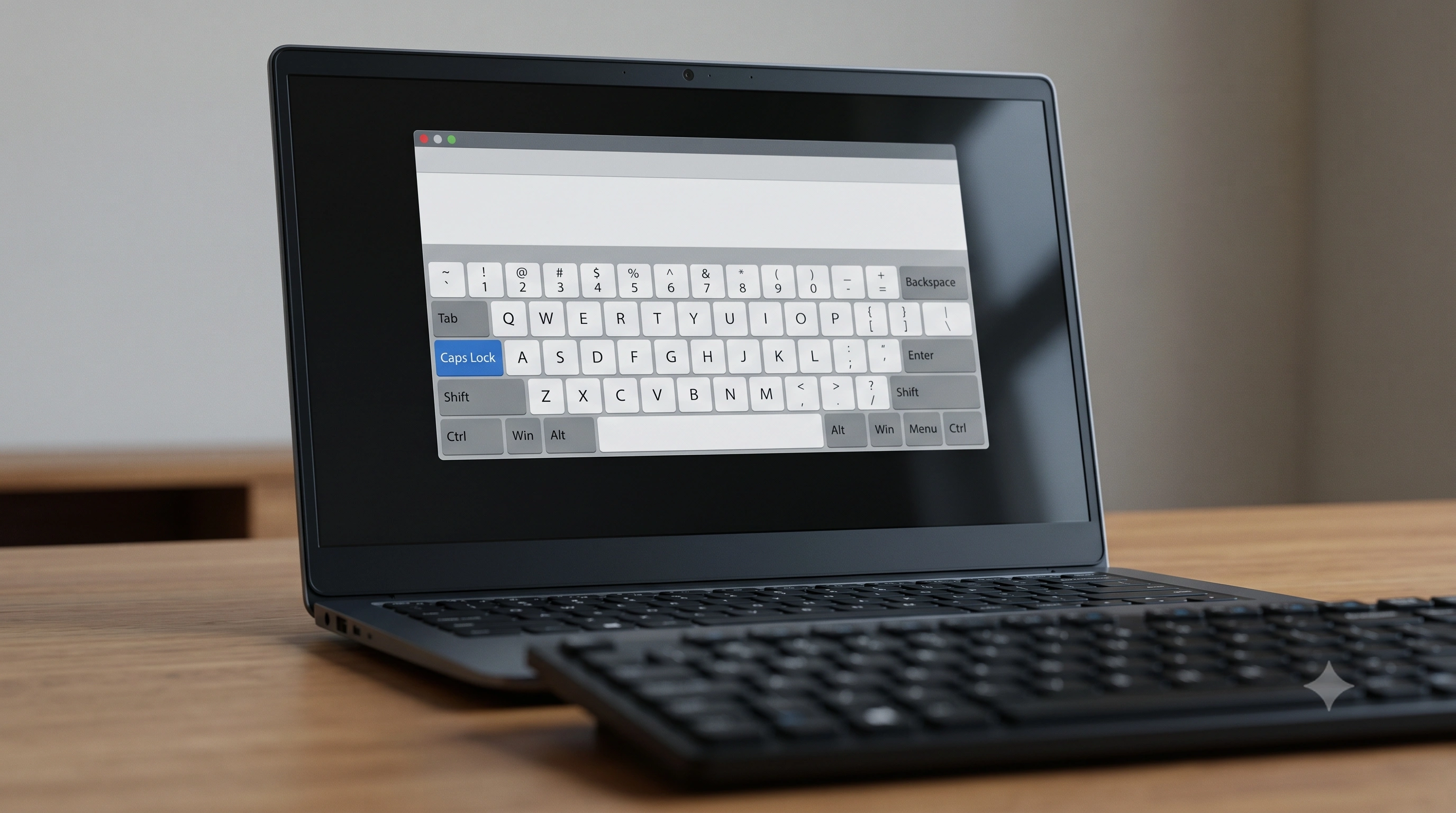
Use an on-screen keyboard as a sanity check
Both operating systems ship a virtual keyboard that mirrors what the system currently thinks is happening, independent of the physical switch. On Windows, search Start for On-Screen Keyboard; on macOS, open Keyboard Viewer from the input menu (or System Settings → Keyboard). If the on-screen Caps Lock key shows as off but your typing is still capitalized, the physical key isn't the problem — something in software is forcing uppercase, and the Windows or macOS section below is where to look next, not another round of cleaning.
Windows: Toggle Keys, StickyKeys, and remapping
- Turn on Toggle Keys (Settings → Accessibility → Keyboard) so Windows beeps every time Caps Lock, Num Lock, or Scroll Lock actually changes state — not a fix, but it turns an invisible toggle into an audible one, handy for catching a key flipping itself on.
- Check StickyKeys. Pressing Shift five times quickly turns it on by accident more often than people realize, and it can make modifier keys behave as if they're still held after you let go. Disable it in the same Accessibility → Keyboard panel.
- Remap or disable Caps Lock entirely. If the key is mechanically fine but you keep triggering it by accident, Microsoft PowerToys' free Keyboard Manager lets you remap it to another key — or to nothing — in a couple of clicks, without touching the registry.
Microsoft's own accessibility documentation covers Toggle Keys, StickyKeys, and the rest of the keyboard accessibility settings in detail; seeMicrosoft Support: make your keyboard easier to use.
macOS: Caps Lock's built-in delay, and remapping
Apple keyboards deliberately require Caps Lock to be held for a fraction of a second before it locks on, to stop accidental taps from engaging it. That short delay can feel like the key is unresponsive on a quick tap, when it's actually working as designed — a firm, deliberate press is normal here, not a fault.
If Caps Lock keeps engaging when you don't want it to, remap or disable it in System Settings → Keyboard → Keyboard Shortcuts → Modifier Keys: choose your keyboard and set the Caps Lock action to another modifier or to No Action. Apple's support article covers every modifier key, not just Caps Lock:Apple Support: change the behavior of the modifier keys on Mac.
When it's a genuine hardware fault
You're likely looking at real hardware failure, not a setting, if all of the following are true: thekey event logger shows the key firing repeatedly or never sending akeyup, cleaning the switch didn't change that, the on-screen keyboard confirms the system itself sees the key as stuck (not just your typed output), and the problem follows the keyboard to a different USB port or a different computer entirely.
On a hot-swap mechanical board, pulling and replacing that one switch is a cheap, permanent fix. On a laptop or soldered board, it's worth a repair quote — a single stuck modifier key rarely justifies replacing the whole keyboard. And if what you're actually seeing is keys that register nothing at all rather than one stuck on, that's a different fault: start withkeyboard keys not working instead.