Spacebar Not Working or Mushy? How to Fix It
The spacebar is the most-pressed key on the board and the largest one mechanically, so it fails in its own particular ways — debris jamming a long stabilizer bar, a mushy feel from a worn membrane dome, or a wire clip that's popped loose. Here's how to work out which, and fix it without wrecking the stabilizer.
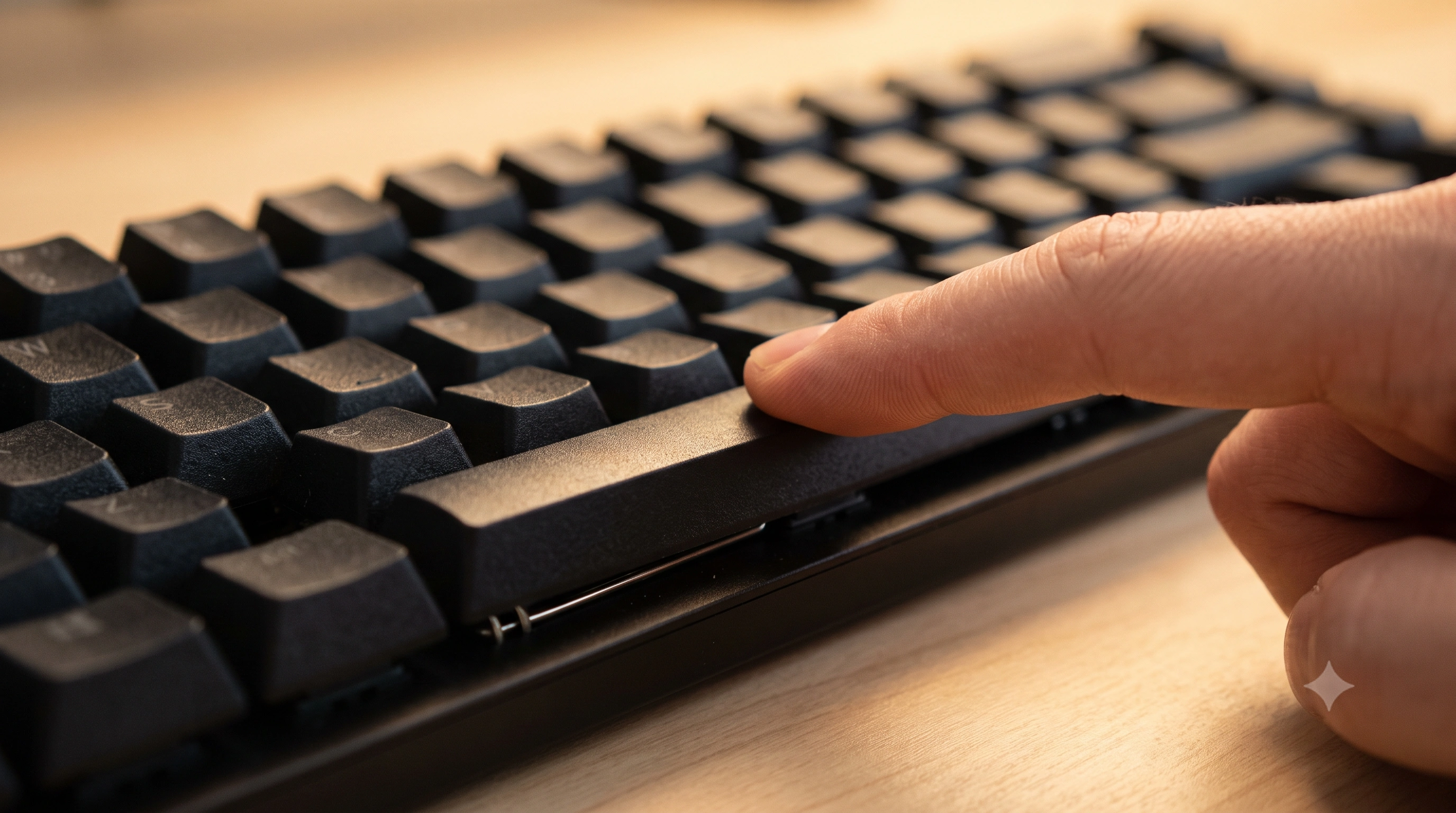
Step 1 — Confirm it's the spacebar, not software
Before you touch a screwdriver, rule out software. A "dead" spacebar is sometimes a stuck modifier, a remap tool, or a focus issue eating the keystroke before it reaches your app. Open theonline keyboard tester and press the spacebar a few times at different speeds — a light tap, a hard press, and a slow, deliberate push — and watch whether it lights up on the on-screen layout every single time.
If it lights up reliably, the key is electrically fine and the problem lives in whichever app seemed broken — check for a stuck Space in a game's key-bind menu, or a remap tool like PowerToys Keyboard Manager or Karabiner-Elements running in the background. If it fails in the tester too, or only registers on a hard press, keep reading — that's a hardware symptom.
Run the check now: open the keyboard tester and press space and confirm it lights up and registers. Keep the tab open — you'll re-test after each fix below.
This applies to Enter, Shift and Backspace too
Everything below — the stabilizer wire, the debris, the worn switch — applies equally to any otherlarge key: Enter, the Shift keys, and Backspace. Any key wide enough to need a stabilizer bar can develop the same mushy feel for the same reasons, so substitute the key if it's one of those acting up instead of Space.
Step 2 — Rule out debris first
The spacebar is the widest key on the board, which makes it the biggest trap for crumbs, dust, and hair. Because it sits on a stabilizer bar rather than directly on a single switch stem, debris under either end can bind the bar and make the whole key feel mushy, catch on one side, or stop registering near the edges even though the center still works.
- Turn the keyboard upside down and shake it gently, or tap it against your palm.
- Blow compressed air along both edges of the spacebar and into the stabilizer-wire gap, holding the can upright so you don't spray propellant onto the switch.
- Re-test in the keyboard tester. If it's fixed, you're done — no disassembly needed.
If it still sticks, catches on one side, or feels noticeably softer than your other keys, move on to removing the keycap.
Step 3 — Removing a stabilized keycap safely
Unlike a regular letter key, the spacebar clips onto a wire stabilizer: a bent metal wire that hooks into two small plastic inserts (or the plate itself, on older boards) on either side of the key and clips into the underside of the keycap in the middle. That wire is what keeps a press on either end feeling even. If it's bent, unclipped, or has slipped out of its housing, the spacebar can feel mushy, lopsided, or unresponsive without the switch underneath being faulty at all.
- Use a keycap puller (or two flathead tools padded with cloth) and pull straight up, applying even pressure at both ends at the same time. Pulling from just one end first is the single most common way people bend a stabilizer wire.
- With the cap off, you'll see the wire still clipped into its underside and hooked into the plate at both ends. Gently unclip it from the keycap by flexing the plastic retention clips — don't pry with metal tools right at the clip, since those tabs are the part that snaps.
- To reseat: hook the wire back into both plate housings first, keeping it level and un-twisted, then clip the keycap onto the wire and the switch stem together, pressing down evenly at both ends until it seats flush. Press-test each end individually — an uneven stabilizer is the most common cause of a spacebar that feels great in the middle and dead at the edges.
If the wire itself looks bent or bowed, straighten it gently before reseating — a warped wire binds against the plate and reproduces the exact mushy feeling you're trying to fix. iFixit'smechanical keyboard stabilizer guidehas photos of correct wire seating for reference.
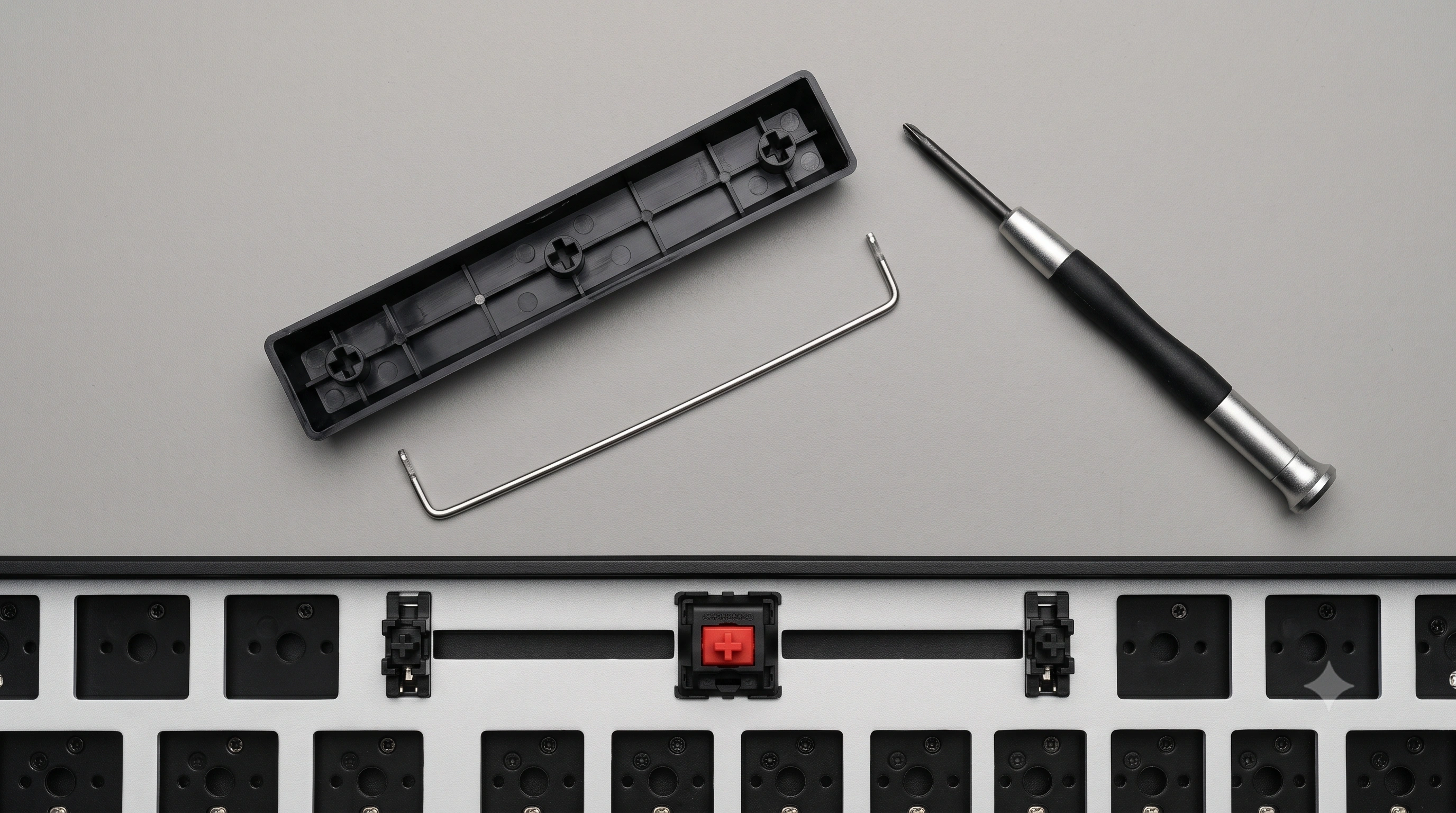
Step 4 — Clean the switch and stabilizer
With the cap off, look at the switch stem and stabilizer housings for dust, hair, or a sticky film from spilled drinks or old lubricant gone gummy. Clean both with a dry brush first, then a cotton swab lightly dampened with isopropyl alcohol (90%+) for anything sticky, and let it dry fully before reassembling. If the stabilizer feels scratchy or rattly rather than sticky, a little dielectric grease on the wire's contact points smooths it out — an upgrade, not a required fix.
Step 5 — Test and replace the switch itself
If the spacebar still won't register after cleaning and a correctly seated stabilizer, the switch underneath has likely failed — separate from the stabilizer, which only guides the keycap and carries no electrical signal.
- Hot-swap board: pull the switch straight up with a switch puller and drop in a spare of the same type — no soldering, fully reversible.
- Soldered board: desolder the two legs from the PCB and solder in a new one — routine with an iron, but a bigger job.
- Confirm before buying a part: a multimeter in continuity mode across the switch's two legs, held closed, tells you for certain whether it's dead rather than just dirty.
For photographed teardown steps on specific models, iFixit'skeyboard repair guidescover keycap and switch replacement in more detail than fits here.
What if it's a membrane keyboard?
Membrane and laptop-style keyboards don't have individual switches under the spacebar — a rubber dome collapses onto a printed circuit membrane sheet when you press. A mushy or unresponsive spacebar here is usually one of three things: the dome has worn out and lost its snap, the membrane sheet has a worn contact point (often visible as a faint stretched patch, since the spacebar takes the most hits), or — as with mechanical boards — debris or spilled liquid residue is blocking full contact. Domes can sometimes be cleaned or swapped from a donor board, but a damaged membrane sheet generally isn't a practical repair — replacing a low-cost membrane board is usually more sensible than chasing that fault.
"Needs too hard a press" vs. "no response at all"
These are different problems. A spacebar that needs an unusually hard press but works eventually usually points to a stabilizer binding against the plate, gummed-up lubricant, or a membrane dome that's lost some — not all — of its snap. A spacebar with no response at all, regardless of pressure, points to a genuinely open circuit: a dead switch, a failed membrane contact, or a wire fully disconnected from the plate. The keyboard tester makes this easy to characterize — press at a few force levels and see whether it's inconsistent or completely silent.
A software wrinkle: Filter Keys
If the spacebar seems to need a long, deliberate hold before it registers — rather than feeling mushy under your finger — check for Filter Keys on Windows (Settings → Accessibility → Keyboard) or the equivalent slow-keys feature on macOS and Linux. It deliberately ignores brief or light presses to prevent accidental input, and it's easy to enable by accident. It produces symptoms that look exactly like a worn switch or tired dome, but the fix is a settings toggle, not a screwdriver.
When to RMA instead of repairing it
Repair it yourself if the board is out of warranty, it's hot-swap, or you're comfortable with basic tools — the spacebar is forgiving to work on because stabilizer parts and switches are cheap and widely available. Reach for a warranty claim instead if the board is still covered, you've found liquid damage spreading beyond the spacebar, or a whole row is affected alongside it — that pattern suggests a cable or controller fault rather than a single stabilizer or switch, better handled under warranty than by chasing parts yourself.